Install Java: JDK vs JRE and Setup on Any OS
Install Java on Windows, macOS, or Linux with the right JDK or JRE, platform-specific commands, and JAVAHOME setup, then test your installation.
tl;dr the short answer
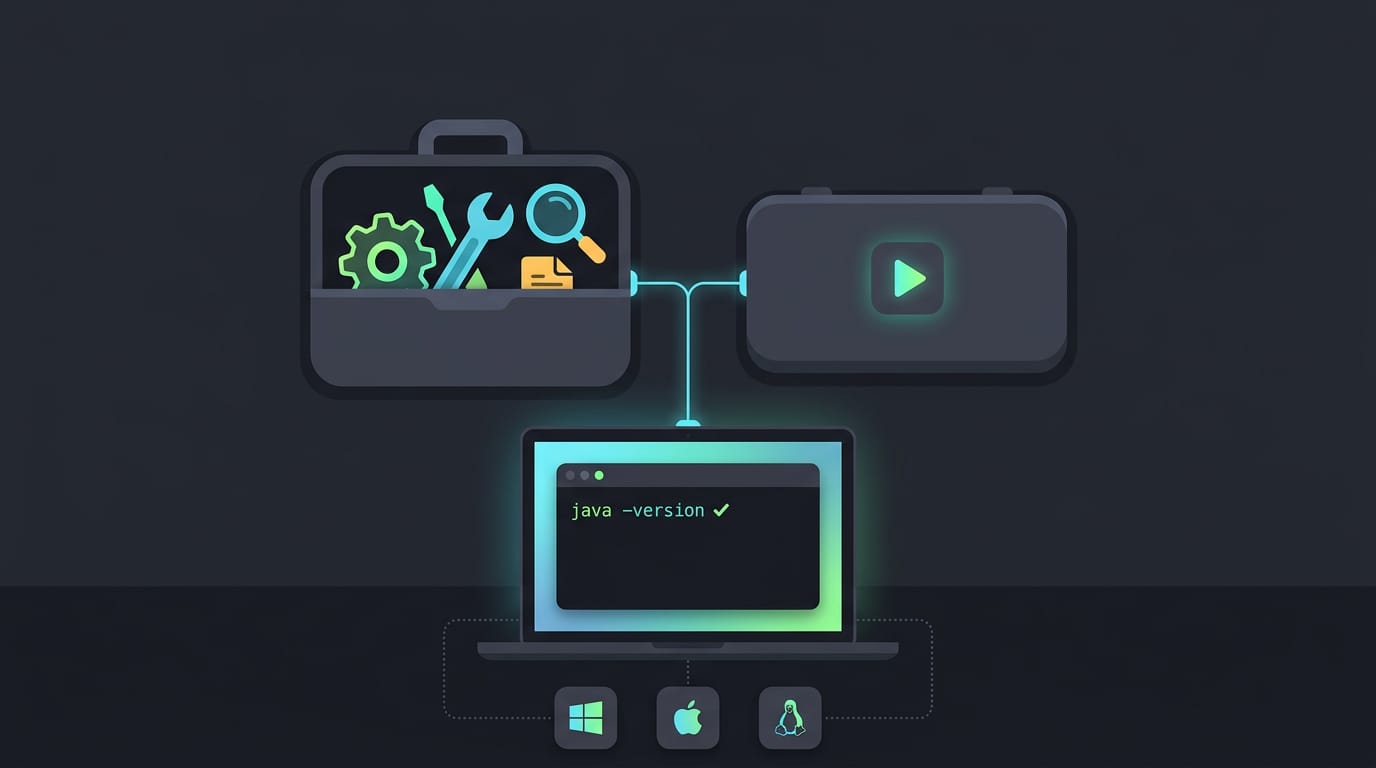
Installing Java means adding the software your computer needs to run Java programs, or the tools needed to build them. Choose a JRE to run programs or a JDK to compile them, match the version and installer to your project and operating system, then set JAVA_HOME and PATH if needed. Verify the setup with java -version and javac -version so you can catch configuration or version problems before they disrupt your work.
Think of a new apartment that’s move-in ready except the power isn’t connected yet. The furniture is there, but nothing turns on. Java works the same way: your programs won’t run until it’s installed and set up correctly.
Getting connected is simpler than it looks, but the details matter. You’ll learn the difference between the Java Development Kit (JDK) and the Java Runtime Environment (JRE), how to pick a version, and how to install it on Windows, macOS, or Linux.
We’ll also cover the apt, dnf, pacman, and Nix commands, plus JAVA_HOME, the variable that tells your system where Java lives.
Pick the Right Package to Install Java
Before you install anything, pick the right package. Let’s sort out the kit versus runtime, which build to use, and which version fits.
Telling the JDK and JRE apart
The Java Development Kit (JDK) is for building Java programs, while the Java Runtime Environment (JRE) is for running them. Here’s how we break it down:
- JDK: includes the compiler and debugger
- JRE: runs programs only
- Server JRE: for servers
- JRE for desktop end users: for people who just run apps
A Linux user compiling a small project needs the JDK, since a JRE has nothing to compile with. Wrong package, broken build.
Choosing between OpenJDK and Oracle’s JDK
The OpenJDK project is an open-source implementation of Java, whose stated goal is “open-source reference implementations of the Java SE Platform.” Oracle’s JDK is maintained by Oracle.
Since Java 11, the two are functionally identical, so you’re choosing who builds it, not what it can do.
- OpenJDK early access builds: previews of upcoming releases
- Temurin and Corretto: other OpenJDK builds
A student on Fedora can grab OpenJDK with dnf (Fedora’s package manager) and skip a manual download.
Picking the right version and LTS support
Latest releases have new features, but LTS (long-term support) releases stay supported longer.
A study in Empirical Software Engineering names Java 8, 11, 17, 21, 25, and 27 as versions to consider, and notes that trying the long-term support versions is “a particularly effective build repair strategy.”
- Update support end dates: check each end date before you commit a project to one.
- Default Ubuntu version: each release ships its own default Java, so check what apt (Ubuntu’s package manager) gives you.
Say your project needs Java 17 but your distro defaults to another version. Installing 17 explicitly spares you from unrelated build errors. Match the version to the project.
Where to Download Java
Oracle publishes the official Java downloads, so that’s where we’ll start.
Official sites and older archives
Start at the official Oracle website, not whichever result ranks first. Its downloads page lists current Java SE (Standard Edition) releases. For older versions, use the archive downloads.
A student whose class project targets an older release grabs that exact version so it runs as the instructor tested it. Check the release notes and documentation, too.
Which installer file fits your system
Match the file to your operating system:
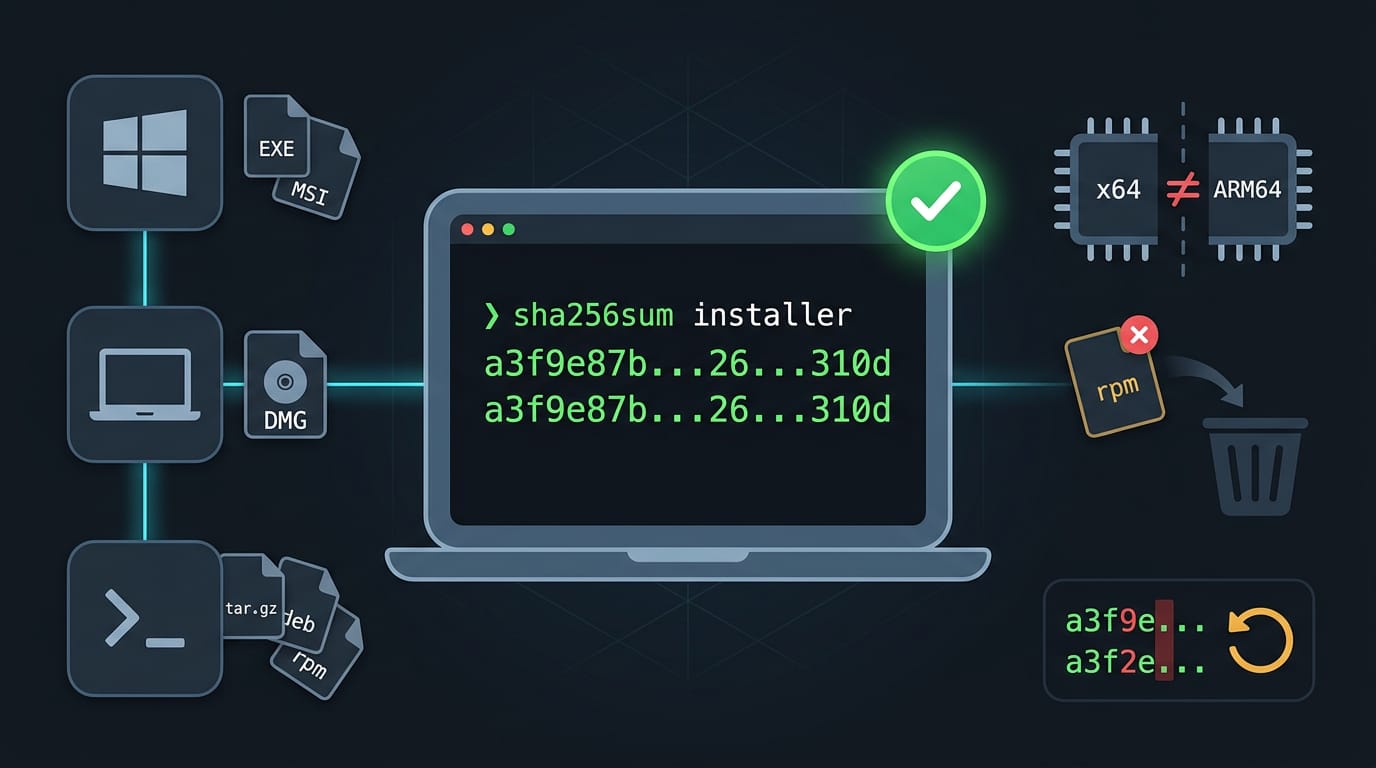
- Windows: EXE (a standalone installer) or MSI (a Windows Installer package).
- macOS: DMG (a disk image holding the installer).
- Linux: tar.gz (a compressed archive), deb (Debian and Ubuntu), or rpm (Fedora and Red Hat).
x64 (64-bit Intel and AMD) and ARM64 (64-bit ARM, like newer Apple Silicon Macs) are not interchangeable. A quick chip check keeps a Fedora user on an ARM laptop from grabbing the wrong rpm.
Verify the download against its SHA256 checksum, a fingerprint the site lists. Compare your file’s hash using sha256sum (Linux), shasum -a 256 (macOS), or Get-FileHash (Windows). If the two don’t match, download again.
Automated installs can fetch some script-friendly download URLs directly.
Java licenses and subscription terms
Terms depend on your release. Many recent releases fall under the Oracle No-Fee Terms, which allow free personal and development use. A tinkerer building a personal project is covered, so there’s nothing to buy.
Older versions use the OTN license (Oracle Technology Network), so check which terms match yours.
Organizations that need paid terms can buy the Java SE subscription.
Accepting the agreement is one click, so skim it first. The license governs how you use Java, not whether you can get it. Then on to installing.
Install Java on Your Operating System
The steps depend on your system, so jump to the section that matches your machine. Each path ends with a working Java, and we’ll check it from a terminal later.
Running the Windows installer
Run the downloaded .exe installer and follow the wizard: read the welcome screen, keep the defaults unless you have a reason to change them, and click Install.
According to a Sivo guide to Oracle’s Java Development Kit, the installer works on Windows versions from Windows 7 through Windows 11. The files install to the Program Files folder, so that’s where you’ll look later.
Manually installing Java on Linux
A manual install takes more steps, but you get control over which version lands where:
- Download the tar.gz archive from Oracle and accept the Oracle license.
- Pick x64 for most Intel and AMD machines, or arm64 for ARM-based systems.
- Extract it with
tar -xzf <archive>.tar.gz. - Move the folder into the
/optdirectory withsudo mv <folder> /opt/.
Prefer a package manager (the tool your distro uses to install software)? Here’s the alternative:
- Fedora:
sudo dnf install java-latest-openjdk - Arch:
sudo pacman -S jdk-openjdk - NixOS: add
jdktoenvironment.systemPackagesinconfiguration.nix, then rebuild.
Using apt to install Java on Ubuntu
You’ll need a user with sudo rights, since installing system packages requires administrator access. Then start with sudo apt update so apt refreshes its package lists.
Picture a developer with a spare Ubuntu box for builds: one install command later, it’s ready for the next project.
Use default-jre if you only run Java programs, and default-jdk if you also build them. Need one specific release? Install a versioned package such as openjdk-17-jdk.
Oracle’s own JDK comes through a third-party installer rather than apt’s packages. Some installers rely on a PPA (Personal Package Archive), a community-run repository.
Import its signing key before you add it, so apt can verify the packages really come from that source.
Setting up Java on a Mac
Download the .dmg file, open it, and double-click the .pkg installer inside. Then follow the on-screen instructions until it finishes. That’s it.
Getting Your Environment Ready
Once Java is installed, two environment settings tell your system where to find it. Here’s how we’ll set them.
Pointing JAVA_HOME at the install folder
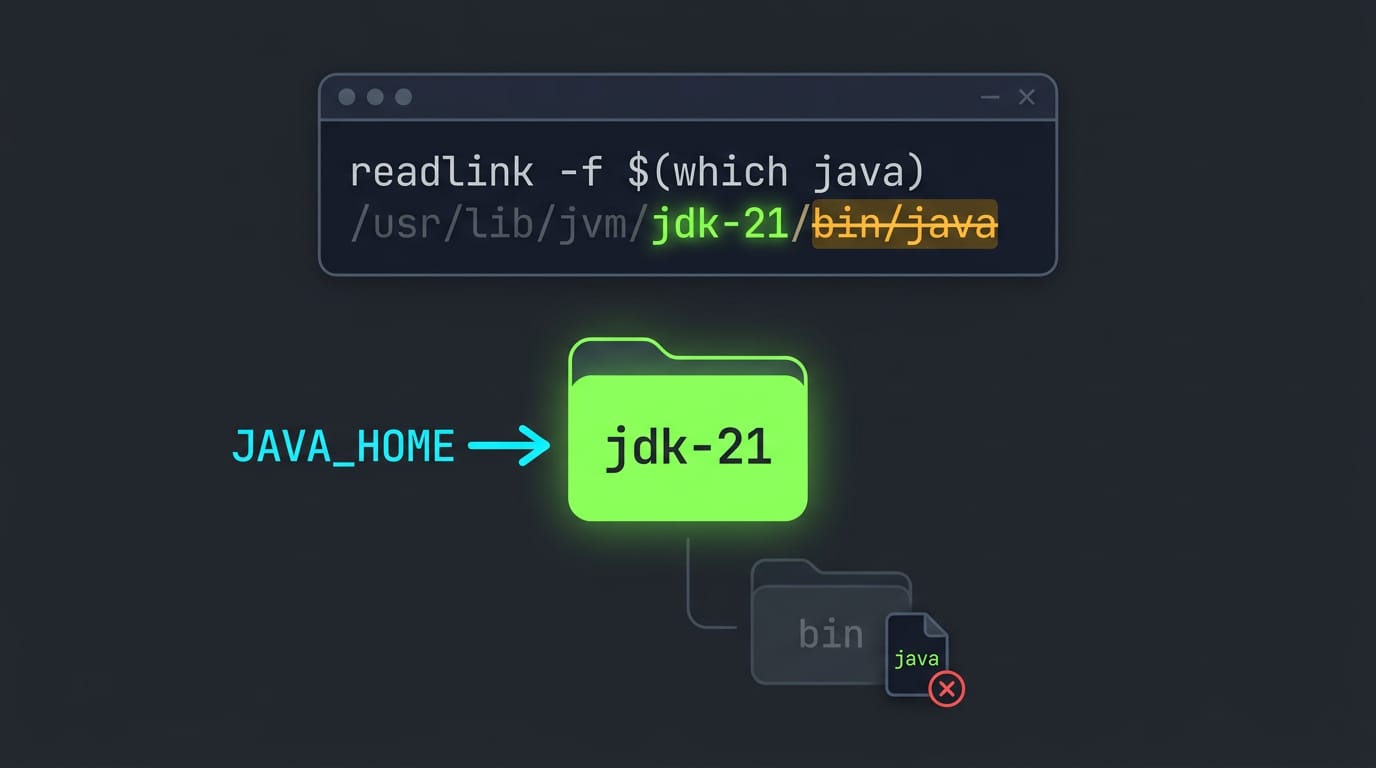
JAVA_HOME is an environment variable holding the path to Java’s install directory. Point it at the folder, not the bin subfolder or java executable.
On Linux, add a JAVA_HOME line to /etc/environment for all users, or an export line to ~/.bashrc or ~/.zshrc for just you. On Windows, add it through the environment variables dialog. On macOS, the java_home utility prints the right path.
Unsure where yours lives? Run readlink -f $(which java) to see the real path, then drop the trailing /bin/java.
Adding Java to your PATH
PATH is the list of folders your shell (the program that runs your commands) searches when you type one.
Add Java’s bin directory to it with an export PATH=$JAVA_HOME/bin:$PATH line in your config, then run source ~/.bashrc (or ~/.zshrc) so the current terminal picks it up. Typing java now works from any folder.
On Windows, add the bin folder to the Path variable in that same dialog. On macOS, this step is optional.
Switching between several Java versions
Several Java versions can coexist on one machine. Take an Arch user with an older release for a university project and a newer one for work. Instead of reinstalling, they switch the default with a single command.
On many Linux systems, sudo update-alternatives --config java opens a menu of installed versions. Repeat it for javac and other tools so the compiler matches your runtime. On Arch, archlinux-java set does the job.
Prefer not to switch by hand? A version manager such as SDKMAN can do it for you.
Testing Your Java Installation
Before you start a real project, confirm that Java runs on your machine. We’ll check the versions, then prove it with a tiny program.
Checking your installed version
Run java -version, then java --version (two dashes). Both report the runtime, the JRE (Java Runtime Environment) that executes your programs.
Next, run javac -version to check the compiler from the JDK (Java Development Kit). A runtime can run programs but can’t build them, so this confirms the full toolkit landed.
If you see command not found, run which java (Linux or macOS) or where java (Windows) to find out whether Java exists at all. Then run echo $JAVA_HOME (or echo %JAVA_HOME% in Command Prompt). A blank line means it isn’t set.
Picture a student on a ten-year-old ThinkPad who just installed the JDK on Fedora. Both version checks print numbers, so they can start coding right away. A missing javac would show up now, not after an evening of confusing errors.
Write and run your first Java program
Create a folder and save this as Hello.java in any text editor:
public class Hello {
    public static void main(String[] args) {
        System.out.println("Hello, world!");
    }
}
The class name must match the file name exactly, capitalization included. A public class with a mismatched name won’t compile.
Compile with javac Hello.java. Silence means success. This creates Hello.class, which holds bytecode, the intermediate format the JVM (Java Virtual Machine) runs.
Run it with java Hello. The contrast matters: javac takes the file name with its extension, but java takes the class name without one.
Seeing Hello, world! means your setup works.
Fixing Problems and Keeping Java Updated
Most Java trouble traces back to a few common errors, and keeping Java current takes only a few commands.
Common errors you might see
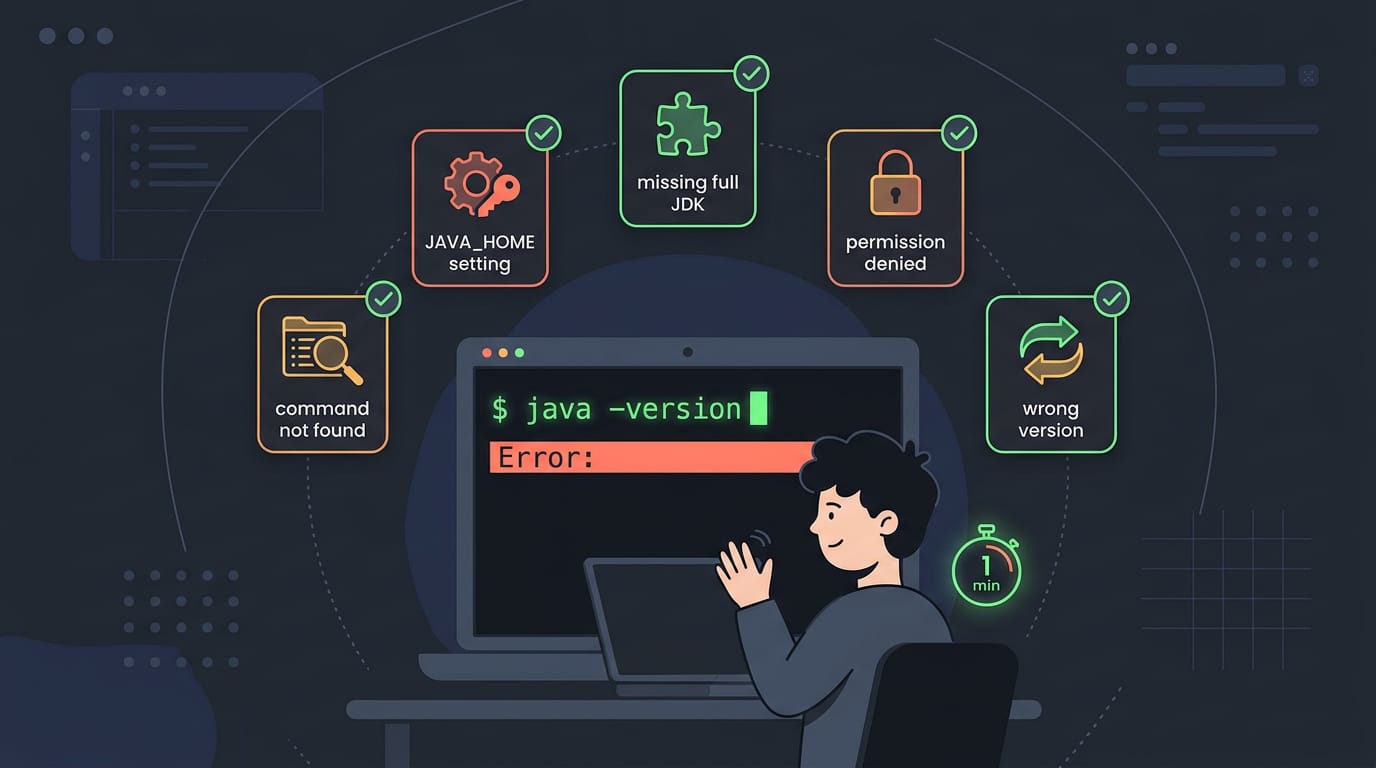
Picture a student who opens a fresh terminal after installing Java and gets an error instead of a version number. Usually one of these five is behind it, and each takes a minute to fix:
- Command not found. Your shell can’t locate
java, usually because its folder isn’t on your PATH (the list of folders your shell searches). Open a new terminal and check withwhich java. - JAVA_HOME not set. Tools read
JAVA_HOMEto find your JDK. Export it in your shell config, then open a new terminal. - Cannot locate JDK or JRE. A tool can’t find a full JDK. If you only installed a JRE, add the JDK too, since build tools need its compiler.
- Permission denied, use sudo. System-wide installs touch folders only root can write to, so prefix the command with
sudo. - Wrong Java after system update. An update can switch your active Java, so
java -versionreports an older release. On Debian and Ubuntu, runsudo update-alternatives --config javaand choose the right one.
Removing or upgrading Java later
Java needs a little upkeep. To remove an apt package, find its exact name with apt list --installed | grep openjdk, then run sudo apt remove followed by that name.
To get the latest update release of your current version, run sudo apt update and then sudo apt upgrade. Switching to a different major version is a separate install, not an upgrade.
On Windows, the Java Management Service handles update checks, so review its settings to decide whether releases install on their own or wait for you. Track what’s active, too.
It’s less about whether Java is installed and more about which version runs, so confirm with java -version and javac -version.
Where to Go Next with Java
Once Java runs on your machine, there’s plenty more to explore. Here’s where we’d point you next, from the official docs to the extra tools you might end up needing.
Docs, tutorials, and certification paths
The official installation instructions are your first stop if you ever need to reinstall or switch versions. Keep the release notes and readmes handy too, since they show what changed and what to check.
Read them before you upgrade, not after something breaks.
Think of a Fedora user who installed a Java Development Kit (JDK) with dnf, then saw a build break after an update. The release notes point to the change, so the fix takes minutes instead of an evening of searching.
Want hands-on practice? The Dev.java tutorials walk you through writing and running real code. When you’re ready to formalize what you know, look into training and certification options. Build something small first.
Extra tools and enterprise add-ons
Beyond the JDK itself, a few extras come up often:
- JDK Mission Control: a tool for analyzing how Java applications perform.
- Enterprise Performance Pack: an enterprise add-on, so read what it covers before you commit.
- JavaFX: a library for building graphical desktop apps.
- Java Verified Portfolio: another enterprise add-on, so compare it against your team’s actual needs.
- Software requiring Java: many apps need Java in place before they’ll run. If you self-host Tomcat (a web server) on a spare ThinkPad, check its version requirements before you start the service, and you’ll skip the restart loop.
You now know how to choose the right package, install Java on your system, set JAVA_HOME, and confirm it’s working.
Knowing whether you need a JDK or a JRE saves a lot of guesswork, and the troubleshooting and update steps will keep your setup healthy over time.
A clean install done right the first time means less frustration later and more time spent on the code itself. Set it up once, set it up right, and let your programs do the rest.
References
- Local software buildability across Java versions | Empirical Software Engineering — link.springer.com (2026)
- Which Operating Systems Are Supported by Oracle JDK? | Operating System Support — hub.sivo.it.com (2025)
- openjdk.org
Sources
- JDK, openjdk.org
- Local software buildability across Java versions | Empirical Software Engineering | Springer Nature Link, link.springer.com,
- Which Operating Systems Are Supported by Oracle JDK? | Operating System Support – Sivo, hub.sivo.it.com,
Read next.
Update Fedora: Packages and Release Upgrades Explained
Update Fedora packages or move to Fedora 41 from the terminal or graphical interface, then check broken drivers and learn how to undo an upgrade.
Install Homebrew on macOS and Linux: Complete Guide
Install Homebrew on macOS or Linux, then set the right PATH and verify commands work before adding tools, updating packages, or fixing setup issues.
Install CUDA on Linux: Driver, Toolkit, and Kernel Steps
Install CUDA without guesswork: match the driver to the toolkit, then check Linux, Windows 11, containers, and rollback steps before you start.