How to make your own terminal color scheme
Build a terminal palette from scratch: a background and text, sixteen ANSI colors evened out in OKLCH and checked for contrast, then loaded and made light too.
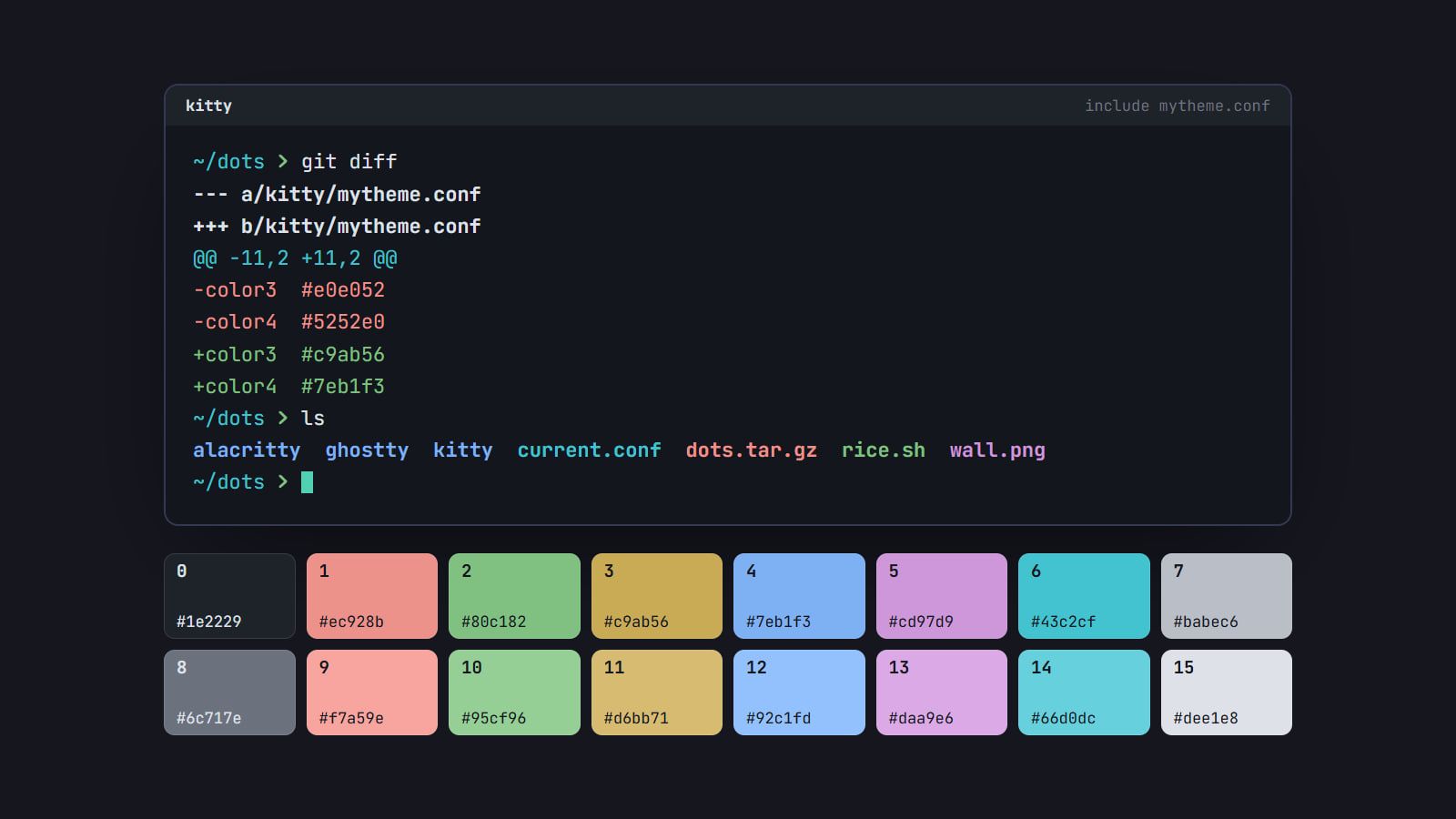
tl;dr the short answer
Pick a tinted near-black background and an off-white text at 7:1 or more, then set red, green, yellow, blue, magenta and cyan at one OKLCH lightness, with the brights a step lighter. Check every color against the background for at least 4.5:1, run git and ls on it, and load it as a theme file your terminal includes.
The short version: pick a near-black background with a hint of color and an off-white text that clears 7:1 against it. Set red, green, yellow, blue, magenta and cyan at one OKLCH lightness so none of them shouts or sinks, make the brights a step lighter, check every color against the background for at least 4.5:1, then test it on real git and ls output. Hue is where your taste goes; lightness and contrast make the scheme work. Every value below comes from one worked example you can copy and recompute.
What a terminal palette has to do
A terminal scheme is two defaults and sixteen numbered colors. The default foreground and background are what plain text sits on. The sixteen ANSI colors are eight normal ones, 0 to 7 (black, red, green, yellow, blue, magenta, cyan, white), and a bright version of each, 8 to 15. Programs ask for them by number in an escape code (listed on Wikipedia’s ANSI escape code page), and your terminal decides what each number looks like.
Programs pick those numbers by meaning, so every slot has a job. With the tools’ default settings:
| # | Name | What uses it |
|---|---|---|
| 0 | black | black backgrounds and text: GNU ls draws pipes in yellow on black, /tmp in black on green |
| 1 | red | removed lines in git diff, archives in ls, Starship’s prompt after a failed command |
| 2 | green | added lines in git diff, executables in ls, Starship’s prompt after a success |
| 3 | yellow | commit lines in git log and, in many tools, warnings |
| 4 | blue | directories in ls |
| 5 | magenta | images in ls, the git branch in Starship |
| 6 | cyan | symlinks in ls, the @@ hunk headers in git diff, the directory in Starship |
| 7 | white | “white” text, like ls’s setuid files in white on red |
| 8 | bright black | zsh-autosuggestions’ suggestions (fg=8), comments in Base16 schemes |
| 9–14 | the brights | emphasis, and bold text in terminals set to draw bold in the bright colors |
| 15 | bright white | the brightest text |
Two things follow. Color 0 is not your background: when a program asks for a black background, it gets color 0, so color 0 has to stand a little apart from the background. And editors running in truecolor, like Neovim with termguicolors on, skip these sixteen and use their own hex values, which is why changing the colorscheme in Neovim is a job of its own.
Start with the background and text
Work in OKLCH, which describes a color by lightness (L, from 0 to 1), chroma (C, how colorful it is) and hue (h, an angle). It is the polar form of Björn Ottosson’s Oklab color space, built to predict how light a color looks, and that is the property a terminal palette lives or dies on.
- Background: a near-black, L between 0.18 and 0.22, chroma 0.03 or less, at the hue you want the scheme to lean toward. The example uses
oklch(0.20 0.015 267), which is#13161d, a blue-gray near-black. - Text: the same hue with less chroma, L between 0.90 and 0.93.
oklch(0.91 0.01 267)is#dee1e8, at 13.83:1 on the background. - Accent: one color for the cursor and the selection. The example’s jade,
oklch(0.78 0.12 175), is#52d0b3, at 9.51:1. The selection background is a dark version of it,oklch(0.32 0.04 175)or#1a3a32, and text on it still reads at 9.46:1.
Pick the eight colors, then the bright eight
Give each of the six colored slots a hue inside its family. This is the rule that keeps red a red: whatever mood the scheme has, a git diff should read at a glance.
| Family | OKLCH hue range | Example hue |
|---|---|---|
| red | 15–45° | 25° |
| yellow | 75–110° | 90° |
| green | 120–160° | 145° |
| cyan | 185–225° | 205° |
| blue | 235–275° | 255° |
| magenta | 290–345° | 320° |
Inside a range, the hue is yours: a red near 15° leans pink, one near 45° leans toward orange. Then fill in the rest:
- Set all six at one lightness and one chroma (the next section explains why). The example uses L 0.75 and C 0.11.
- Make color 0 the background with L up 0.05:
#1e2229. It is quiet, but a block of it still shows. - Make color 7 a light gray below the text, L 0.80:
#babec6. - Make color 8 a mid-gray, L 0.55:
#6c717e. Readable, but clearly quieter than the other text colors. - Make color 15 the text color,
#dee1e8. - Make each bright (9 to 14) the same hue as its normal color, with L up 0.05 and chroma down about 10%.
Even out lightness with OKLCH
The usual way to pick six colors is HSL: one saturation, one lightness, six hues. But HSL’s lightness isn’t the lightness you see. Six colors at hsl(h 70% 60%) on the example background:
| Color | Hex | OKLCH L | Ratio on background |
|---|---|---|---|
| red | #e05252 |
0.63 | 4.74 |
| yellow | #e0e052 |
0.88 | 12.89 |
| green | #52e052 |
0.80 | 10.47 |
| cyan | #52e0e0 |
0.83 | 11.29 |
| blue | #5252e0 |
0.53 | 3.14 |
| magenta | #e052e0 |
0.68 | 5.56 |
Same “lightness”, yet yellow glares at nearly 13:1 and blue sinks to 3.14:1, below the floor. That’s the blue-on-black problem Julia Evans opens Terminal colours are tricky with, and picking by HSL walks straight into it.
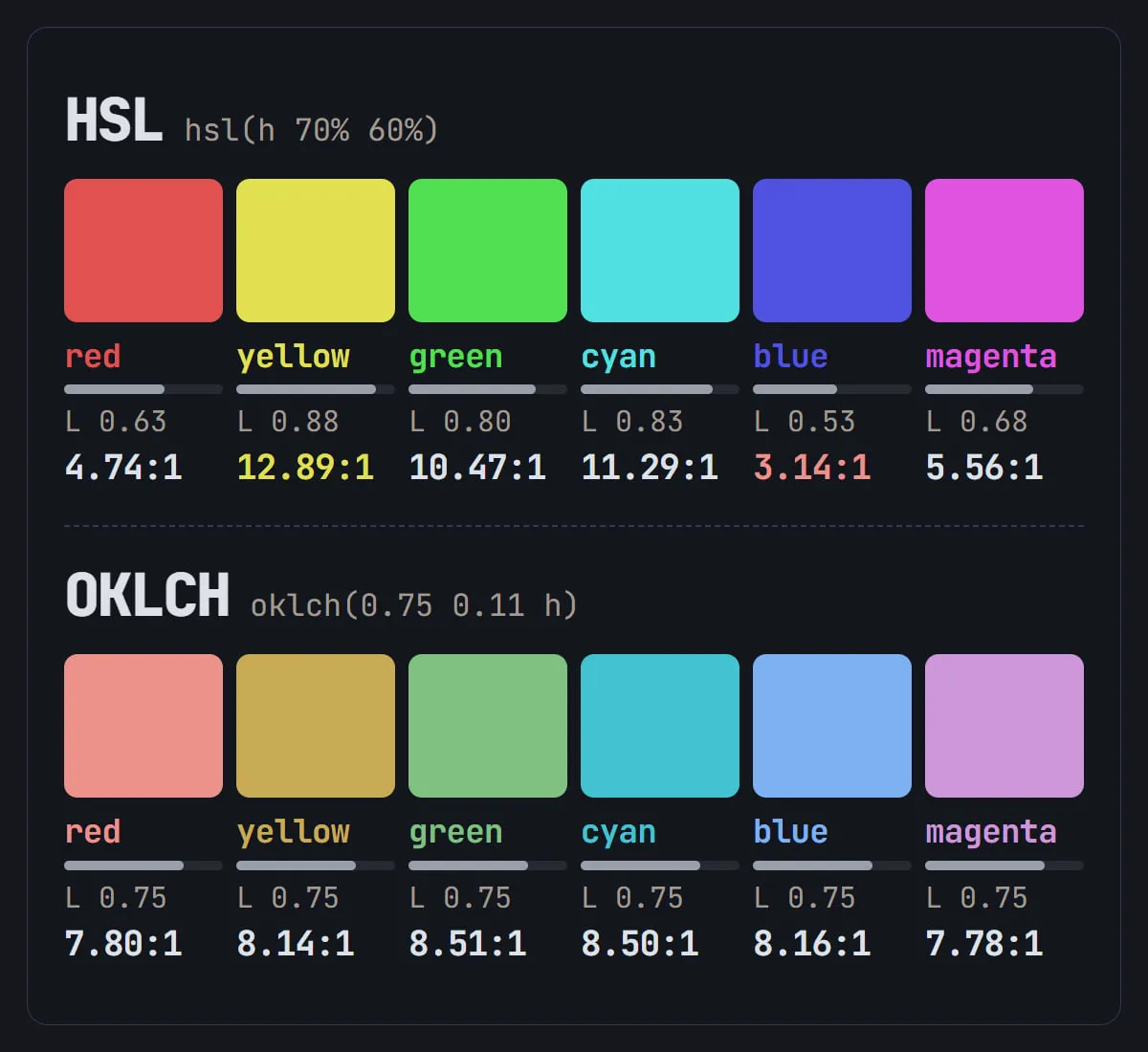
Set the six at one OKLCH lightness instead, L 0.75 and C 0.11, and they land between 7.78:1 and 8.51:1: one even weight, with the hue doing the talking. Two adjustments are normal:
- Yellow: at the same lightness as the others, yellow can read as mustard. Lift it a few hundredths if you want it brighter: at L 0.80 it becomes
#d9bb66, at 9.70:1. - The edge of sRGB: some blues and cyans at higher chroma don’t exist as screen colors, and a picker will clip them. If a hue won’t convert cleanly, lower its chroma a little rather than its lightness.
An OKLCH color picker turns each value into the hex your terminal wants.
Check contrast against the background
WCAG 2 defines the contrast ratio as (L1 + 0.05) / (L2 + 0.05), where L1 and L2 are the relative luminances of the lighter and darker color. It runs from 1:1 to 21:1. WCAG asks for 4.5:1 for normal text and 7:1 for its stricter level. For a terminal, that gives these floors:
- Text: 7:1 or more, and never below 4.5:1.
- Colors 1 to 7 and 9 to 15: 4.5:1 each, since all of them print text.
- Color 8: 3:1, under WCAG’s floor on purpose. It carries autosuggestions and comments, which should recede; lift it to 4.5:1 if you’d rather they didn’t.
- Color 0: no floor on the background, since it’s mostly used behind text. Check text on it instead (12.19:1 here).
- Text on the selection, and the cursor text on the accent: 4.5:1.
When a color fails, move its lightness and leave its hue alone. You can check a pair with a few lines of Python:
def luminance(hex):
    r, g, b = (int(hex[i:i + 2], 16) / 255 for i in (1, 3, 5))
    lin = lambda c: c / 12.92 if c <= 0.04045 else ((c + 0.055) / 1.055) ** 2.4
    return 0.2126 * lin(r) + 0.7152 * lin(g) + 0.0722 * lin(b)

def ratio(a, b):
    hi, lo = sorted((luminance(a), luminance(b)), reverse=True)
    return (hi + 0.05) / (lo + 0.05)

print(f"{ratio('#ec928b', '#13161d'):.2f}")  # 7.80
Here is the whole example palette against #13161d:
| # | Name | Hex | Ratio | # | Name | Hex | Ratio |
|---|---|---|---|---|---|---|---|
| 0 | black | #1e2229 |
1.13 | 8 | bright black | #6c717e |
3.71 |
| 1 | red | #ec928b |
7.80 | 9 | bright red | #f7a59e |
9.34 |
| 2 | green | #80c182 |
8.51 | 10 | bright green | #95cf96 |
10.04 |
| 3 | yellow | #c9ab56 |
8.14 | 11 | bright yellow | #d6bb71 |
9.66 |
| 4 | blue | #7eb1f3 |
8.16 | 12 | bright blue | #92c1fd |
9.71 |
| 5 | magenta | #cd97d9 |
7.78 | 13 | bright magenta | #daa9e6 |
9.31 |
| 6 | cyan | #43c2cf |
8.50 | 14 | bright cyan | #66d0dc |
10.02 |
| 7 | white | #babec6 |
9.71 | 15 | bright white | #dee1e8 |
13.83 |
Test it on real output
Numbers get you close; real output has the final say. Print all sixteen, as text and as backgrounds, in bash or zsh:
for i in $(seq 0 15); do
  printf '\033[38;5;%dm color %2d \033[0m \033[48;5;%dm color %2d \033[0m\n' "$i" "$i" "$i" "$i"
done
Then go through the places colors carry meaning:
- Run
git diffin any repository. Red and green should be easy to tell apart at a glance, and the cyan@@lines should be easy to find. - Run
git logand check the yellow commit lines. - Run
ls -lin a folder with directories, symlinks and executables, andls -ld /tmpfor black on green. - Type the start of a command you’ve used before and look at the autosuggestion. It should be quiet but legible.
- Open a full-screen program that paints backgrounds, like htop or Midnight Commander, and check nothing vanishes into color 0.
One cost of even lightness: red and green at the same lightness are harder to tell apart with red-green color blindness. If that applies to you, separate them in lightness (a deeper red, a lighter green) and lean on the + and - in diffs.
Load it in your terminal
Keep the scheme in its own file next to your config, so swapping schemes is one line. In kitty, save this as ~/.config/kitty/mytheme.conf:
foreground           #dee1e8
background           #13161d
cursor               #52d0b3
cursor_text_color    #13161d
selection_foreground #dee1e8
selection_background #1a3a32

color0  #1e2229
color1  #ec928b
color2  #80c182
color3  #c9ab56
color4  #7eb1f3
color5  #cd97d9
color6  #43c2cf
color7  #babec6
color8  #6c717e
color9  #f7a59e
color10 #95cf96
color11 #d6bb71
color12 #92c1fd
color13 #daa9e6
color14 #66d0dc
color15 #dee1e8
Add include mytheme.conf to kitty.conf after any color lines already there, then press ctrl+shift+f5 to reload. Other terminals take the same values in their own format:
- Alacritty: a TOML file with
[colors.primary],[colors.normal]and[colors.bright]tables, loaded withimport = ["~/.config/alacritty/mytheme.toml"]under[general]inalacritty.toml. The importing file loads last, so delete any[colors]tables left in it. - Ghostty: a file at
~/.config/ghostty/themes/mythemewithbackground = #13161d,foreground = #dee1e8and onepalette = 0=#1e2229line per color, thentheme = mythemeinconfig.ghostty(justconfigbefore Ghostty 1.2.3).ctrl+shift+,reloads it on Linux.
Choosing between them is its own question, covered in the best terminal emulator for Linux. If you’d rather start from a picture than from hue angles, the Generator builds a palette from a wallpaper by the same rules (text and the six colors at 4.5:1 or more, red kept red) and writes the theme files for kitty, Alacritty and Ghostty.
Make the light version
A light scheme isn’t the dark one inverted. Put the example’s six colors on a pale background, oklch(0.97 0.008 267) or #f3f5fb, and every one lands near 2:1. Everything has to move:
- Background and text:
#f3f5fbandoklch(0.28 0.02 267), which is#242933, at 13.38:1. - The six: L 0.50, chroma 0.10 (cyan 0.08, to stay inside sRGB). They land between 5.26:1 and 5.80:1.
- The brights: a step darker, not lighter, at L 0.45, since on a pale background darker is what reads as stronger.
- Color 0: a dark neutral at L 0.35 (
#363a45), so text printed in “black” still reads. - Colors 7 and 15: light grays (
#cdd1d9and#e2e4ea) that can’t carry text; programs that print white text are a known limit of every light scheme. - Color 8: L 0.62,
#818693, at 3.34:1.
| Color | Hex | Ratio on #f3f5fb |
|---|---|---|
| red | #944a46 |
5.79 |
| green | #3b723e |
5.26 |
| yellow | #796006 |
5.52 |
| blue | #39659b |
5.49 |
| magenta | #7c4f86 |
5.80 |
| cyan | #157079 |
5.31 |
Yellow pays the most: at a lightness that reads on white it turns ochre, close to olive. That’s normal, and it beats the bright yellow on white that Julia Evans calls almost impossible to read. Ghostty can follow your system’s light and dark mode with theme = light:mytheme-light,dark:mytheme.
Once the terminal is done, the same sixteen values can theme the bar, the launcher and the editor; the palettes in our Toolkit show how far one scheme can travel. To pull a palette out of an image instead, making a color scheme from your wallpaper compares pywal16, wallust and matugen, and there’s more on palettes and type in Color & Type.
Questions
What contrast ratio should terminal text have?
At least 4.5:1 against the background, which is the WCAG 2 minimum for normal text, and 7:1 or more for your main text color if you read the terminal all day. Bright black is the usual exception: it carries autosuggestions and comments, which are meant to recede, so it can sit nearer 3:1.
What are the 16 ANSI colors used for?
They are eight named colors (black, red, green, yellow, blue, magenta, cyan and white) plus a bright version of each, and programs ask for them by number rather than by hex. Tools use them for meaning: git prints removed lines in red and added ones in green, ls shows directories in blue and symlinks in cyan, and zsh-autosuggestions draws its suggestions in color 8. Your scheme decides what each number looks like.
Should a terminal background be pure black?
It doesn’t have to be. A near-black with a slight tint, around 0.18 to 0.22 lightness in OKLCH, leaves room for color 0, tab bars and status lines to sit just above it, which pure black can’t. If you want pure black anyway, make color 0 a dark gray so anything a program draws on a black background still shows.
What’s the difference between a 16-color scheme and a truecolor theme?
A 16-color scheme changes what colors 0 to 15 look like, so every program that asks for red gets your red. A truecolor theme sends exact RGB values with 24-bit escape codes and skips your palette entirely, which is what Neovim does with termguicolors on. Programs that use the 256-color palette can also reach colors outside your sixteen, so a matched setup needs the terminal scheme plus ports of it for the apps that bring their own colors.
Sources
- Web Content Accessibility Guidelines (WCAG) 2.2: contrast ratio and relative luminance, W3C
- A perceptual color space for image processing, Björn Ottosson,
- ANSI escape code: Colors, Wikipedia
- Terminal colours are tricky, Julia Evans,
Read next.
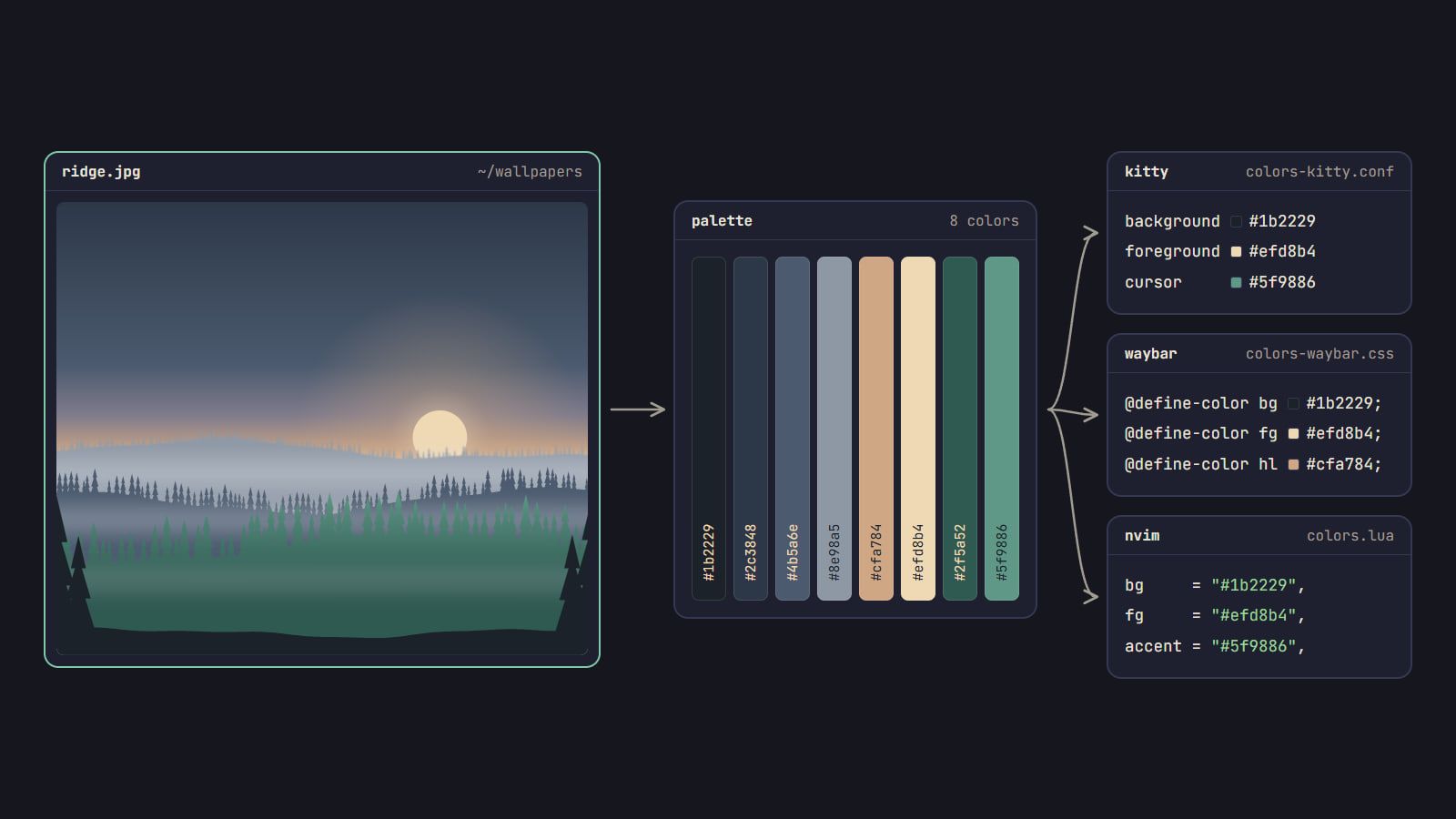
Color scheme from wallpaper: pywal, wallust and matugen
How pywal16, wallust and matugen turn a wallpaper into a color scheme, which fits your rice, how to wire it into your apps, and when a fixed palette is better.
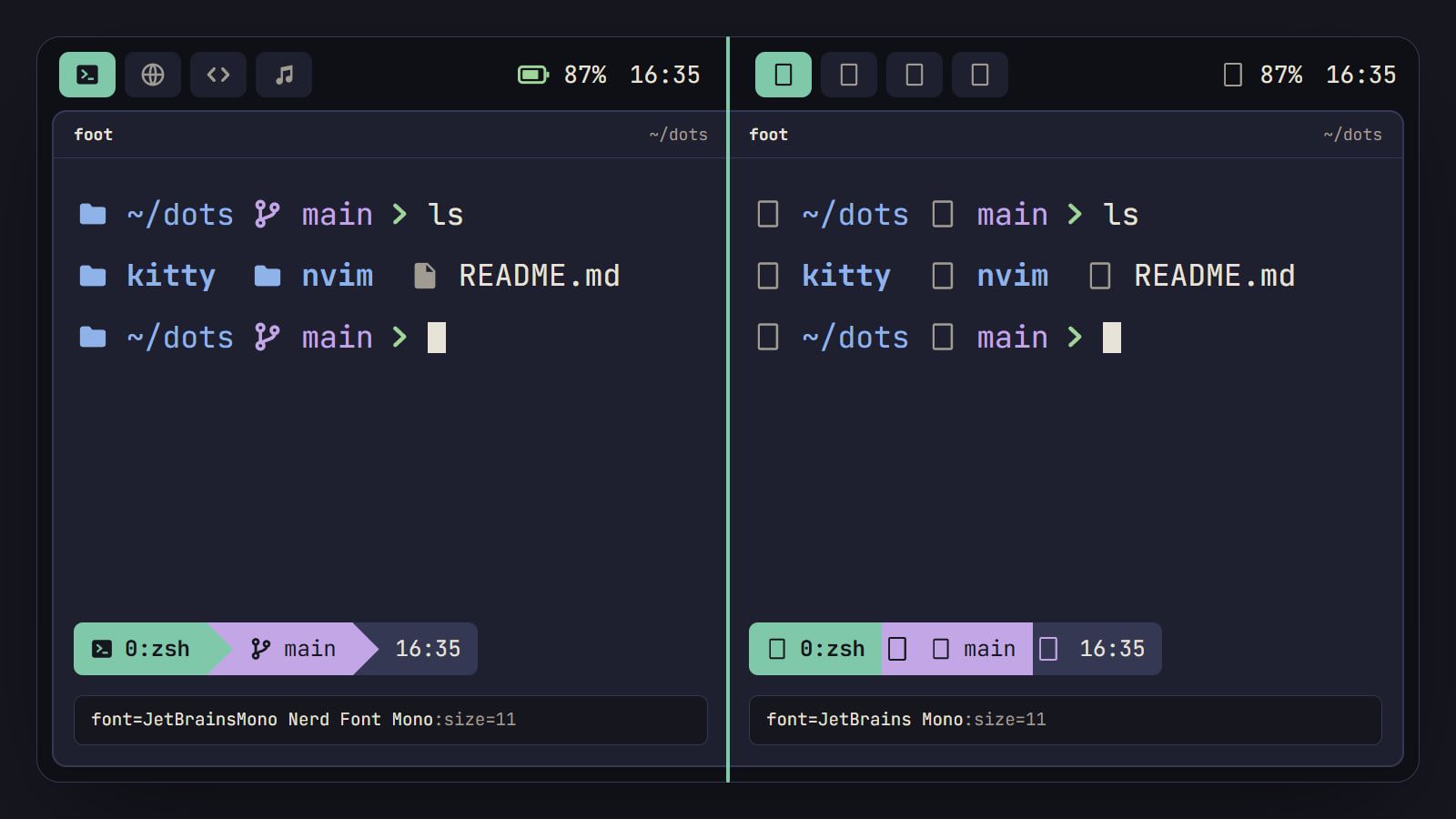
How to install Nerd Fonts on Linux (and fix the boxes)
Pick the right Nerd Font variant, install it from packages or by hand, check it with fc-list, set its exact name in your apps and fix icons that show as boxes.