How to change the colorscheme in Neovim
Try a scheme with :colorscheme, install it with vim.pack, lazy.nvim or LazyVim, make it stick in init.lua, and match Neovim to the palette of your terminal.
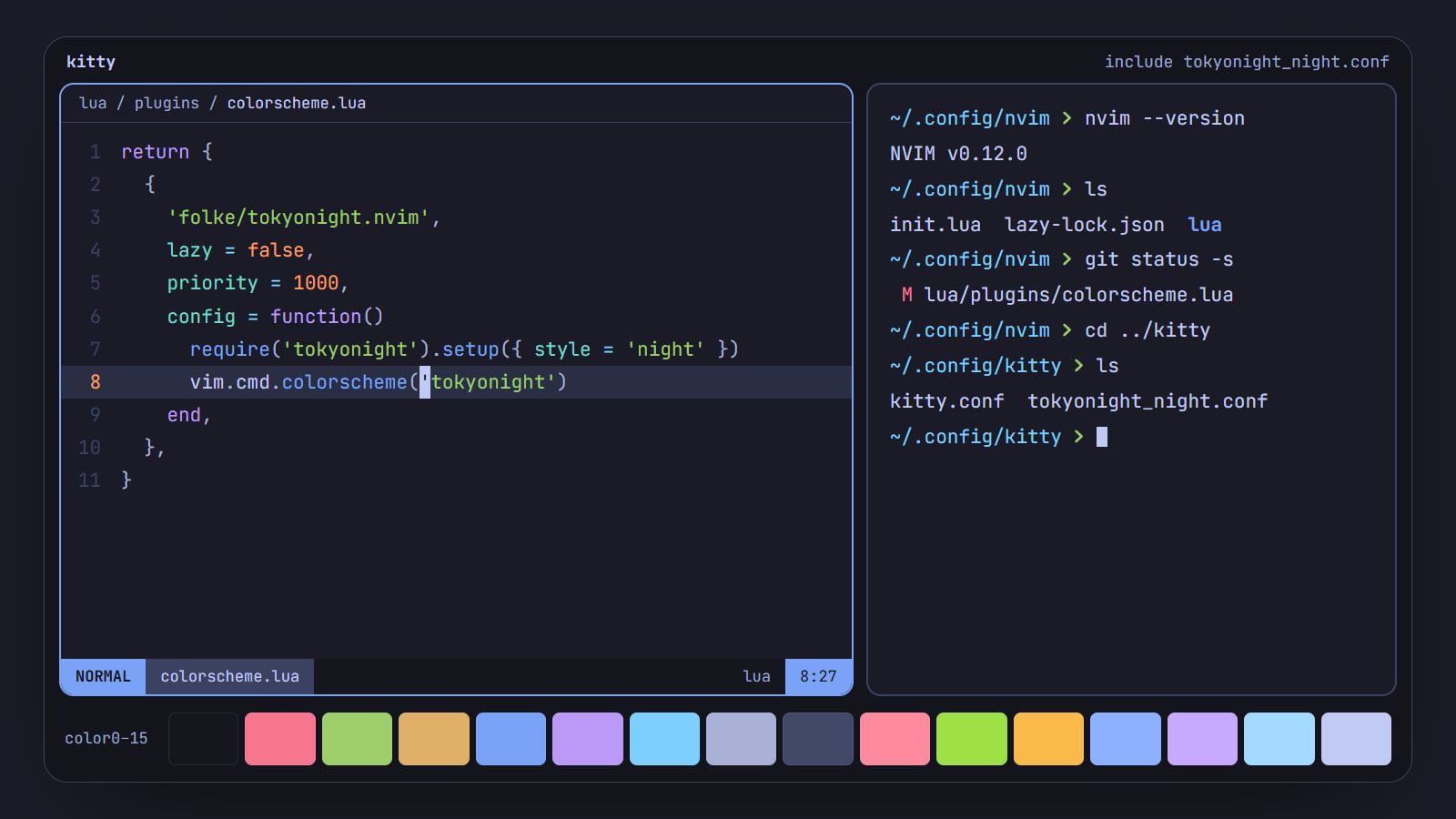
tl;dr the short answer
Type :colorscheme and a name to try a scheme, then put vim.cmd.colorscheme(‘name’) in init.lua after the line that loads its plugin, so it survives a restart. With lazy.nvim, give the scheme lazy = false and priority = 1000, and in LazyVim set the colorscheme option on LazyVim/LazyVim instead.
To try a colorscheme, type :colorscheme and its name: :colorscheme habamax recolors Neovim on the spot. To keep one, install the plugin that provides it and add vim.cmd.colorscheme('name') to your init.lua, after the line that loads the plugin; typed at the command line, a scheme only lasts until you quit. This guide was written against Neovim 0.12 and uses tokyonight.nvim as the example. It covers the built-in vim.pack, lazy.nvim and LazyVim, then matches the editor to the terminal around it so the whole rice shares one palette.
Try a scheme with :colorscheme
Neovim ships with more than two dozen schemes, so you can try the command before installing anything:
:colorschemeon its own prints the name of the scheme in use.:colorschemefollowed by a space and Tab cycles through every scheme Neovim can find, built-in and installed. Press Enter to apply one.:set background=light(ordark) switches a scheme that has both versions. Changing it reloads the scheme.
Built-in ones worth a look are default (Neovim’s own since 0.10), habamax, retrobox, sorbet and unokai. Neovim 0.12 also ships Vim’s port of catppuccin, Latte on a light background and Mocha on a dark one, and :colorscheme vim brings back the colors from before 0.10.
Install one with vim.pack
Neovim 0.12 added a plugin manager of its own, so a colorscheme no longer needs a third-party one. The vim.pack documentation still calls it experimental, “yet should be stable enough for daily use”. Add this to ~/.config/nvim/init.lua:
vim.pack.add({ 'https://github.com/folke/tokyonight.nvim' })

require('tokyonight').setup({ style = 'night' })
vim.cmd.colorscheme('tokyonight')- Restart Neovim. vim.pack asks you to confirm the first install, then downloads the plugin into
~/.local/share/nvim/site/pack/core/opt/. - Run
:colorscheme; it should printtokyonight-night. - Commit
~/.config/nvim/nvim-pack-lock.jsonalong withinit.lua. vim.pack records the exact commit of every plugin there, so a new machine gets the same version. - To update later, run
:lua vim.pack.update(), read the changes in the tab it opens, then:writeto accept them or:quitto skip.
Call setup() before the colorscheme line, as the tokyonight.nvim README asks: the options are read when the scheme loads. Its styles are storm, moon, night and day, and each is also a scheme name of its own, such as tokyonight-night.
Install one with lazy.nvim or LazyVim
lazy.nvim
Give the scheme its own spec, in a file under lua/plugins/ if your setup imports that folder, or in the list you pass to require('lazy').setup():
return {
  {
    'folke/tokyonight.nvim',
    lazy = false,
    priority = 1000,
    config = function()
      require('tokyonight').setup({ style = 'night' })
      vim.cmd.colorscheme('tokyonight')
    end,
  },
}
lazy = false loads it at startup instead of on demand, and priority = 1000 loads it before the other startup plugins (the default is 50), so plugins that read highlight groups when they start see the right colors. The lazy.nvim plugin spec recommends a high priority for colorschemes for this reason.
LazyVim
LazyVim already loads tokyonight in its moon style, comes with catppuccin installed too, and falls back to habamax if the scheme you pick fails to load. To switch, add the plugin and point LazyVim at it in lua/plugins/colorscheme.lua:
return {
  { 'ellisonleao/gruvbox.nvim' },
  {
    'LazyVim/LazyVim',
    opts = { colorscheme = 'gruvbox' },
  },
}
To keep tokyonight and only change its style, give its spec opts = { style = 'night' } instead. The LazyVim colorscheme page has the full specs for both bundled schemes.
Make it stick in init.lua
The colorscheme line has to run after the plugin is available, or Neovim stops with E185: Cannot find color scheme and keeps the default. Keep exactly one place that sets it: with LazyVim that’s the option above, anywhere else it’s one line in init.lua.
A guard keeps a fresh machine readable before its plugins have installed:
local ok = pcall(vim.cmd.colorscheme, 'tokyonight')
if not ok then
  vim.cmd.colorscheme('habamax')
end
A scheme you made yourself needs no plugin at all. Any .lua or .vim file in ~/.config/nvim/colors/ is found by name, so ~/.config/nvim/colors/mytheme.lua loads with vim.cmd.colorscheme('mytheme'). Keep the whole ~/.config/nvim folder, lockfile included, in your dotfiles; our guide to managing dotfiles with GNU Stow sets that up.
Preview schemes before you pick
- Built in: the Tab cycling above. Apply one, look at a real file for a minute, try the next.
- Telescope:
:Telescope colorscheme enable_preview=truerecolors the editor as you move through the list. - LazyVim:
<leader>uCopens its colorscheme picker, which previews each scheme live.
To shortlist, install three or four, live with each for a day, then remove the rest. With vim.pack, take a plugin out of vim.pack.add() first, then run :lua vim.pack.del({ 'tokyonight.nvim' }) with its name; with lazy.nvim, delete its spec and run :Lazy clean. Catppuccin, Rosé Pine, Dracula and the Base16 schemes are in the palettes section of our Toolkit, each with ports for most of a rice.
Match Neovim to your terminal and desktop
A scheme looks its best when the terminal around Neovim wears the same colors.
- Check true color.
:set termguicolors?should printtermguicolors. Since 0.10, Neovim turns it on by itself when the terminal reports 24-bit color; if it printsnotermguicolors, addvim.o.termguicolors = truetoinit.luaand check the tmux fix below. - Use the scheme’s port in the terminal. tokyonight’s repository has an
extrasfolder with themes for kitty, foot, Alacritty, Ghostty, tmux, fish and dozens more. For kitty, copyextras/kitty/tokyonight_night.confinto~/.config/kitty/and addinclude tokyonight_night.conftokitty.conf. - Line up the backgrounds. A terminal background one shade off from Neovim’s shows as a frame around the editor. Use the port with the same style, or make Neovim’s background transparent: tokyonight takes
transparent = trueinsetup(), and the terminal’s own opacity setting, such as kitty’sbackground_opacity, decides what shows through. - Or start from one palette. The Generator builds a palette from your wallpaper and writes a Neovim colorscheme and theme files for kitty, Alacritty and Ghostty from it. To build one by hand, how to make your own terminal color scheme gives every color its job. Inside Neovim’s own
:terminal, most schemes set the sixteen colors throughvim.g.terminal_color_0to_15.
Tweak a few highlight groups
Put the cursor on anything and run :Inspect to see which highlight groups color it. If the scheme has a hook for overrides, like tokyonight’s on_highlights, use that. For any scheme, a ColorScheme autocommand reapplies your tweaks every time a scheme loads. Put it above the colorscheme line so the first load runs it too:
vim.api.nvim_create_autocmd('ColorScheme', {
  callback = function()
    vim.api.nvim_set_hl(0, 'Comment', { italic = false, update = true })
    for _, group in ipairs({ 'Normal', 'NormalFloat', 'SignColumn' }) do
      vim.api.nvim_set_hl(0, group, { bg = 'NONE', update = true })
    end
  end,
})

vim.cmd.colorscheme('tokyonight')
update = true, new in 0.12, changes only the attributes you name. Without it, nvim_set_hl replaces the whole group, so a lone { bg = 'NONE' } on Normal would wipe its text color as well.
Tip: keep overrides few and specific. Three lines that fix what bugs you survive a scheme update; fifty lines are a scheme of your own, and at that point it’s tidier to write one in
~/.config/nvim/colors/.
When the colors look wrong
- E185 at startup. The name is misspelled or the plugin isn’t loaded yet. Tab-complete
:colorschemeto see the exact names, and check that the line comes aftervim.pack.add()or inside the lazy.nvim spec. - Washed out or off inside tmux. Add these to
tmux.conf, with your own$TERMfrom outside tmux in place ofxterm-kitty(tmux 3.2 or later), then restart tmux:set -g default-terminal "tmux-256color" set -as terminal-features ",xterm-kitty:RGB":checkhealthrun inside tmux has a tmux section that flags a wrong$TERMand missing true color. - A light scheme when you wanted dark. At startup Neovim sets
backgroundfrom the terminal’s own color, and schemes like tokyonight pick their light style from it. Load the dark style by name, such astokyonight-night, or check your terminal’s background. catppuccindoesn’t look like the plugin. That name now loads Vim’s built-in port, which isn’t maintained by the Catppuccin team. The catppuccin/nvim README loads the plugin ascatppuccin-nvim, or by flavor, such ascatppuccin-mocha.- A sidebar or statusline doesn’t match. The scheme has no colors for that plugin. tokyonight and catppuccin list the plugins they support in their READMEs; for the rest, a few groups in the autocommand above do it.
- Another scheme wins. Something later in your config loads a different one.
:colorschemenames the scheme in use; search your config for everycolorschemeline and keep one.
There’s more on editors and how they fit a rice in Editors.
Questions
Why does my colorscheme reset when I restart Neovim?
A scheme typed at the command line only lasts for that session. Put vim.cmd.colorscheme(‘name’) in init.lua, after the line that installs or loads the plugin; if it runs before the plugin is available, Neovim stops with E185 and keeps the default. If the line is there and the scheme still changes, something later in your config loads another one.
Why do colors look wrong in Neovim inside tmux?
tmux has to be told that the terminal outside it supports 24-bit color, or Neovim falls back to fewer colors. Add set -g default-terminal “tmux-256color” and set -as terminal-features “,xterm-kitty:RGB” to tmux.conf, with your own $TERM in place of xterm-kitty, then restart tmux. Running :checkhealth inside tmux reports when true color isn’t detected.
How do I make Neovim’s background transparent?
Many schemes have an option for it, such as transparent = true in tokyonight or transparent_background = true in catppuccin. For any other scheme, clear the background of Normal, NormalFloat and SignColumn in a ColorScheme autocommand. The terminal then shows through, so its own opacity setting decides what you see.
How do I see which colorschemes I have installed?
Type :colorscheme followed by a space and press Tab to cycle through every scheme Neovim can find, built-in ones included, or Ctrl-D to list them all at once. From Lua, vim.fn.getcompletion(‘’, ‘color’) returns the same list.
Sources
- Syntax and highlighting: :colorscheme, Neovim user documentation
- vim.pack: the built-in plugin manager, Neovim user documentation
- Plugin spec, lazy.nvim documentation
- tmux FAQ: How do I use RGB colour?, tmux wiki