Color scheme from wallpaper: pywal, wallust and matugen
How pywal16, wallust and matugen turn a wallpaper into a color scheme, which fits your rice, how to wire it into your apps, and when a fixed palette is better.
tl;dr the short answer
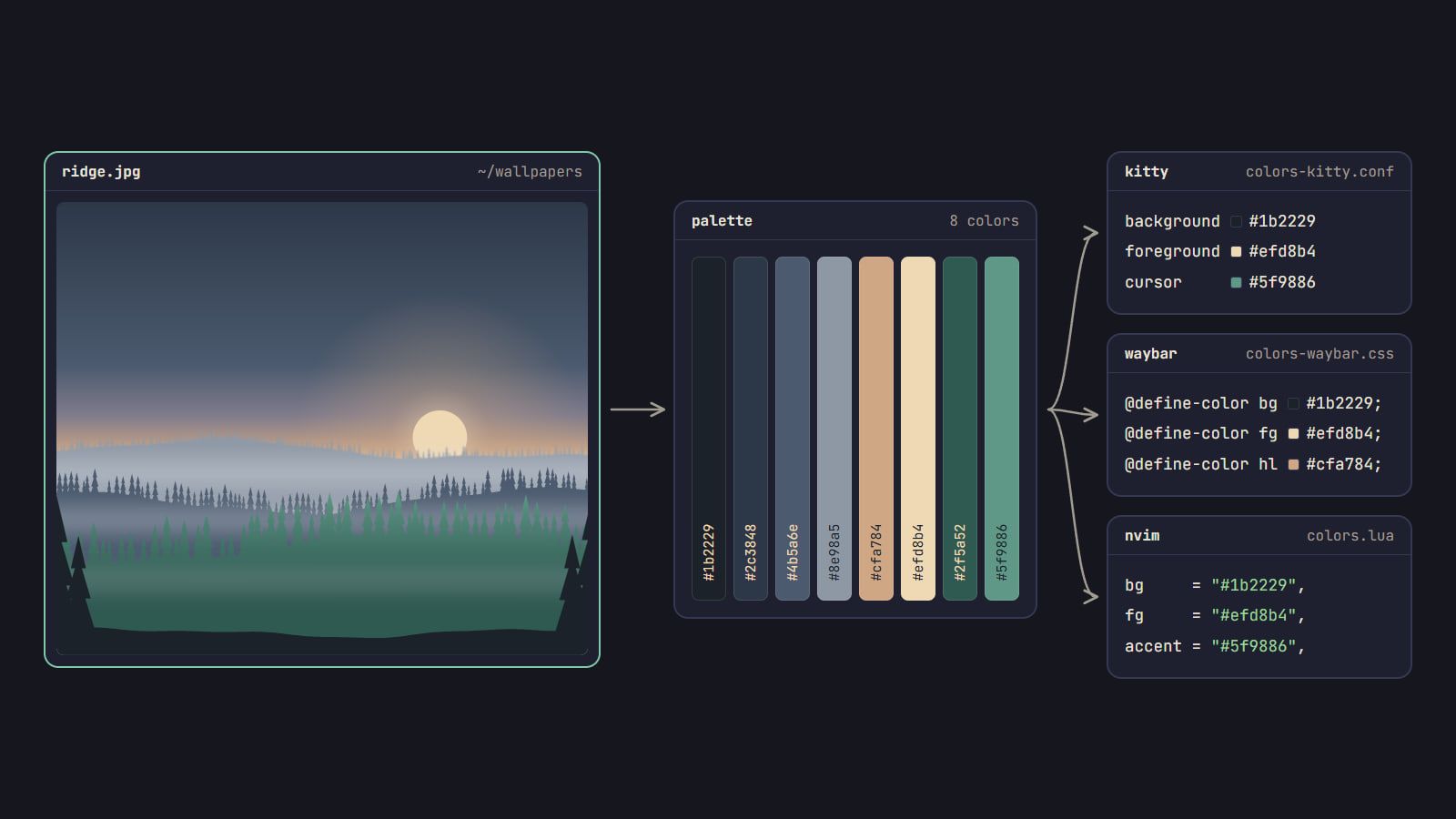
pywal16, wallust and matugen read your wallpaper, pull a palette from it and fill templates your apps load: pywal16 and wallust take the image’s dominant colors, matugen builds Material You tonal palettes from one source color. Use one of them if your wallpaper changes often, and one fixed palette kept in your dotfiles if it doesn’t.
pywal16, wallust and matugen all do the same job: read a wallpaper, pull a palette out of it and fill in templates your apps load. They differ in how they choose the colors. pywal16 and wallust take the image’s dominant colors and put them in the sixteen terminal slots, which suits a terminal-first rice. matugen picks one source color and builds Material You tonal palettes from it, which suits bars, widgets and GTK-style shells. If you change wallpapers often, use one of them; if you’ve settled on one, a palette made once and kept in your dotfiles does the job with nothing running. This guide was written against pywal16 3.8.15, wallust 3.5.2 and matugen 4.2.0.
How a wallpaper becomes a palette
Every one of these tools starts the same way. It shrinks the image (pywal16’s ImageMagick backend works on a copy at 25% of the size), then clusters the pixels into a handful of colors with k-means, median cut or a similar method. What happens next is where they split:
- Dominant colors: the clusters go straight into the palette. pywal16 and wallust fill color 0 to color 15 from them, then adjust a few slots: pywal16, for one, darkens the first color into the background and derives the grays from it.
- A source color: matugen follows Material You. It scores the clusters, throws out the near-grays and the rare ones, picks one source color and builds tonal palettes from it: a range of tones from black to white for each of a few related hues. Color roles like
primary,surfaceandon_surfaceare picked from those tones.
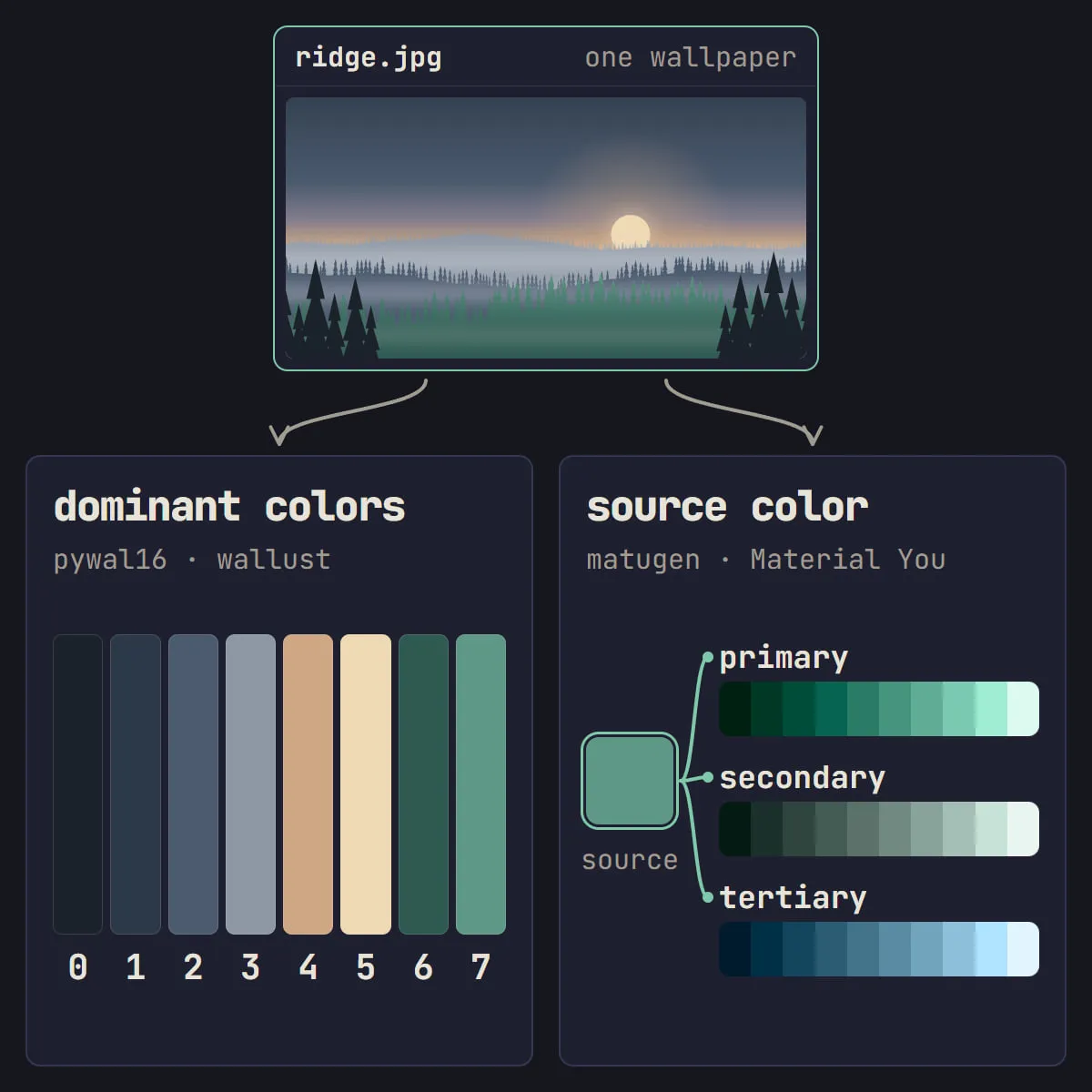
The catch with dominant colors is meaning. Programs use color 1 for errors and removed lines and color 2 for success and added ones, so a terminal palette needs a red that is red and a green that is green. pywal16’s ImageMagick backend puts the image’s colors into the slots in the order its color reduction returns them, not by hue, so a seascape can hand you blue-grays for both. That’s the trade-off of a palette drawn entirely from a picture, and it’s why the tools below grew options to push colors back into shape.
pywal and pywal16
pywal started the idea. The original repository was archived in April 2024, and pywal16 is the fork that carries it on, with a 16-color mode and more backends. It installs from PyPI as pywal16 and runs as wal:
wal -i ~/wallpapers/ridge.jpgThat one command builds the palette, sets the wallpaper, recolors every open terminal with escape sequences and writes theme files to ~/.cache/wal/: colors.json, colors-kitty.conf, colors-waybar.css and many more. The flags you’ll reach for:
-lfor a light scheme,-nto leave the wallpaper alone,-Rto restore the last scheme.--saturate(−1.0 to 1.0) when the colors come out gray.--contrastwith a minimum contrast ratio; its help text suggests 1.5 to 4.5.--cols16to make the bright eight their own colors instead of repeats of the normal eight (bydarken,lightenand other methods).--backendto pick another way of extracting colors.
For an app without a built-in template, put your own in ~/.config/wal/templates/. It uses Python’s format syntax, {color1}, {background} or {color4.strip} for hex without the #, with literal braces doubled, and pywal16 writes the result to ~/.cache/wal/ under the same name.
wallust: templates with contrast checks
wallust is a Rust tool in the same family, with more control over how colors are picked. Version 3.5.2 is the current stable release; the 4.x line is in alpha.
wallust run ~/wallpapers/ridge.jpgIt recolors open terminals the same way and reads ~/.config/wallust/wallust.toml, where the choices live: a backend for reading the image, a color_space for comparing colors (lab, lch, salience and mixed variants), a palette for arranging them (dark, light, harddark, softdark, softlight, each with a 16 variant). A short config that turns on the contrast check and writes a kitty theme:
palette = "dark16"
check_contrast = true

[templates]
kitty = { template = "kitty.conf", target = "~/.config/kitty/wallust.conf" }
Both check_contrast, which makes sure the colors read against the background, and saturation (1 to 100), which lifts or calms them, are off by default. Templates sit in ~/.config/wallust/templates/ and use a subset of Jinja2, with filters for adjusting a color in place:
background {{background}}
foreground {{foreground}}
color0 {{color0}}
color1 {{color1}}
# … and so on to color15
A template can use pywal’s syntax instead (the pywal = true option), so old templates carry over. Setting the wallpaper is left to your setter, which a [hooks] entry can run for you.
matugen: Material You colors
matugen takes the approach Material You uses for Android’s wallpaper colors, through a Rust port of Google’s Material Color Utilities. Version 4.2.0 is current.
matugen image ~/wallpapers/ridge.jpg -m darkIf the image offers more than one good source color, matugen 4 asks which to use; --source-color-index 0 takes the most dominant without asking. -t picks the scheme type (scheme-tonal-spot by default; matugen --help lists the rest, from scheme-monochrome to scheme-vibrant), and --contrast goes from −1 to 1. Templates are declared in ~/.config/matugen/config.toml, each with an optional command to run afterwards:
[templates.kitty]
input_path = "./templates/kitty.conf"
output_path = "~/.config/kitty/matugen.conf"
post_hook = "pkill -USR1 kitty"
Inside a template you name roles, like {{colors.surface.default.hex}} or {{colors.primary.default.hex}}. That’s matugen’s strength and its catch. Roles are made for interfaces, so bars, launchers and GTK-style shells come out coherent. But there is no green role. Material’s default error palette is a fixed red, so error makes a safe color 1; the kitty template in matugen-themes, the project’s own collection, then fills colors 2, 3 and 4 from the tertiary, secondary and primary roles, so your “green” and “yellow” take whatever hues the scheme gave those. If git diffs matter to you, add your own red, green and yellow under [config.custom_colors]: matugen nudges each toward the wallpaper’s hue by at most 15 degrees, so a red stays recognizably red.
Side by side
| pywal16 | wallust | matugen | |
|---|---|---|---|
| Written in | Python | Rust | Rust |
| Version at writing | 3.8.15 (April 2026) | 3.5.2 (January 2026) | 4.2.0 (August 2026) |
| How it picks colors | dominant colors, several backends | dominant colors, with a choice of backend, color space and palette | one source color, Material You tonal palettes |
| What templates get | color0–color15, background, foreground, cursor | color0–color15, background, foreground | roles such as primary, surface, on_surface, plus the tonal palettes |
| Contrast option | --contrast (a minimum ratio) |
check_contrast |
--contrast (−1 to 1) |
| Light schemes | -l |
light palettes | -m light |
| Template syntax | Python format: {color1} |
Jinja2 subset or pywal’s | its own engine: {{colors.primary.default.hex}} |
| Sets the wallpaper | yes | through a hook | through [config.wallpaper] |
| Recolors open terminals | yes | yes | through a template in matugen-themes |
Wire the colors into your apps
All three follow the same pattern: the tool writes a theme file, your app’s config loads it with one line, and something tells the app to reload. Your own config stays yours.
- Point the app at the file. In kitty,
include ~/.cache/wal/colors-kitty.conffor pywal16, orinclude wallust.conforinclude matugen.conffor the targets above. Waybar takes an@importof the generated CSS at the top ofstyle.css. - Reload the running app. kitty rereads its config on
SIGUSR1(pkill -USR1 kitty), and Waybar reloads onSIGUSR2(pkill -SIGUSR2 waybar). Put those in matugen’spost_hookor wallust’s hooks. - Change the wallpaper and the theme together. Run the tool from the same script or keybind that sets the wallpaper:
#!/bin/sh
# setwall: set the wallpaper, then theme everything from it
pkill swaybg
swaybg -m fill -i "$1" &
wallust run "$1"
Keep the templates in your dotfiles and leave the generated files out, since they change with every wallpaper. If you’re still putting the rest of the desktop together, the first-rice checklist shows where the palette fits in the order of work.
One fixed palette instead
Re-theming on every wallpaper change is worth it when the wallpaper actually changes: a folder on rotation, a new image every week. If you’ve found the one you keep, a generator running on every change buys you little. The palette is rebuilt with whatever contrast the image happens to give, tuning it means editing templates, and the tool has to be on every machine you set up.
The other route is a palette you make once, tune by eye and keep in your dotfiles as plain theme files. The Generator does that in the browser: drop in the wallpaper (it never leaves your computer), adjust contrast, warmth and accent while a mock desktop recolors, and download theme files plus a palette.json. Every text color stays at 4.5:1 or more on the background and red stays red, whatever the image. To build one by hand instead, making your own terminal color scheme walks through the same rules. And if you’d rather borrow, the palettes in our Toolkit, like Catppuccin and Rosé Pine, come with ports for most apps.
Wallpapers that give a usable palette
Whichever route you take, the image sets the ceiling:
- A range of lightness. A dark area gives a dark scheme its background, a pale one gives a light scheme its own.
- A few distinct hues with real color. Fog, gray streets and sepia give gray palettes; Material’s extraction drops near-grays entirely, and the dominant-color tools need saturation pushed up.
- Not one hue everywhere. An ocean in ten blues gives ten blues, and red and green have to come from somewhere else.
Mind the license once you share your dotfiles, since a wallpaper in a public repository is a copy you’re handing on. The Unsplash License lets you use its photos freely without asking, with credit appreciated but not required; files on Wikimedia Commons each carry their own license on their description page, often with attribution or share-alike terms. Credit the artist in your README either way. For more on palettes and type, see Color & Type.
Questions
Is pywal still maintained?
The original pywal repository was archived on April 26, 2024, and is now read-only. pywal16 is the maintained fork: it installs as pywal16, still runs as wal, and had its 3.8.15 release in April 2026. wallust, written in Rust as a successor to pywal, can also use pywal’s template syntax.
Why do generated themes look washed out or muddy?
Because the colors are averaged from the image. Foggy, gray or sepia photos give low-chroma clusters, and averaging many pixels pulls hues toward gray. Raise saturation (pywal16’s --saturate, wallust’s saturation option), try another backend, or pick a wallpaper with a few strong colors; for text that is hard to read on a dark image, use pywal16’s --contrast or wallust’s check_contrast.
Can the theme change automatically when the wallpaper changes?
Yes, by running the tool from whatever changes the wallpaper: a script, a keybind or a timer. pywal16 can set the wallpaper itself, wallust can run your wallpaper setter from a hook, and matugen from the wallpaper section of its config. In scripts, give matugen --source-color-index so it doesn’t stop to ask which color to use.
Do these tools work on Wayland?
Yes. Writing theme files and sending color escape sequences to open terminals doesn’t depend on the display server. pywal16 detects a Wayland session and sets the wallpaper with swww, swaybg or wbg, and wallust and matugen leave the wallpaper to whichever setter you name in their config.
Sources
- dylanaraps/pywal (archived April 26, 2024), GitHub
- Wallust guide, wallust
- Color extraction, Material Color Utilities
- Unsplash License, Unsplash
Read next.
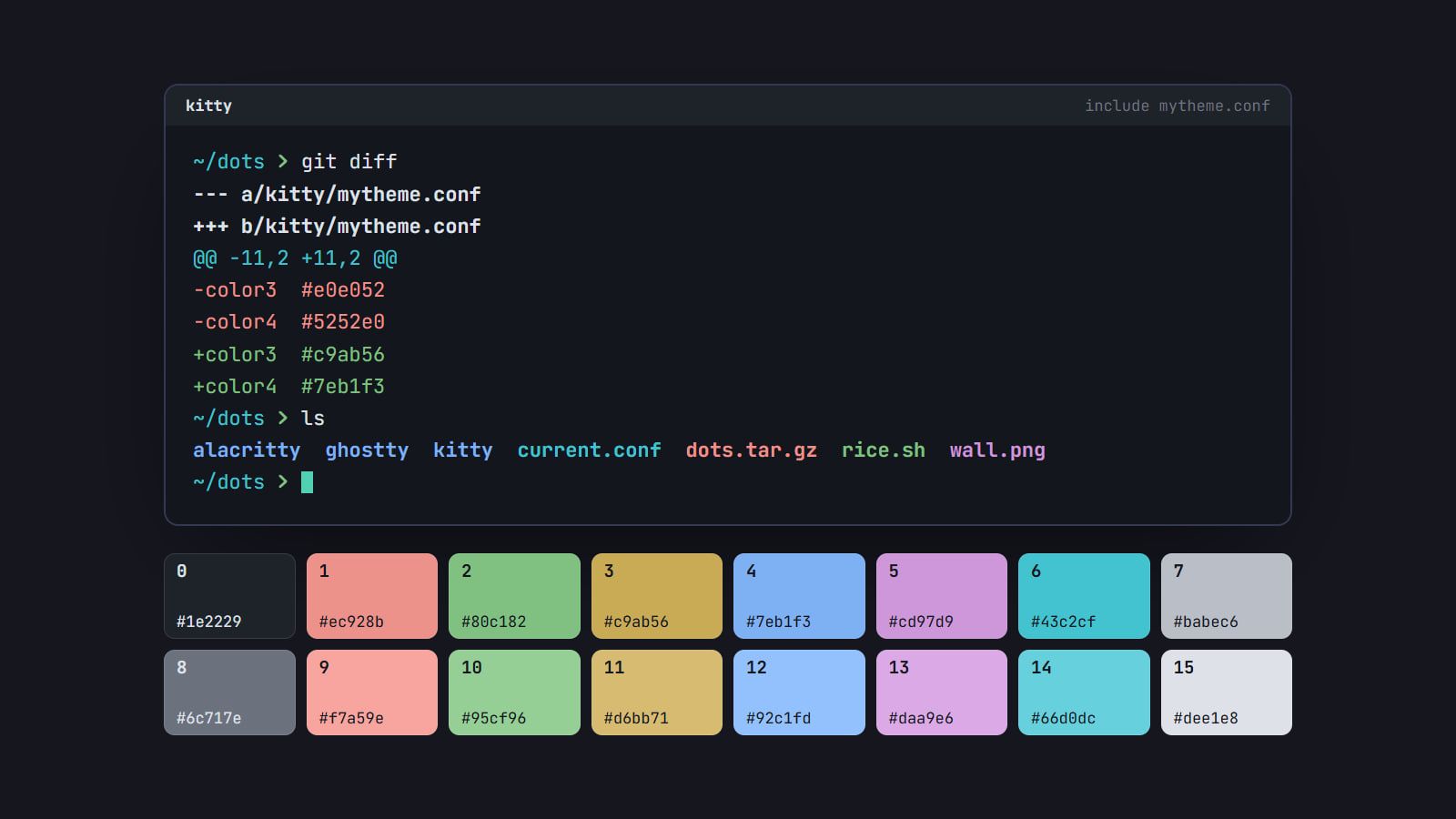
How to make your own terminal color scheme
Build a terminal palette from scratch: a background and text, sixteen ANSI colors evened out in OKLCH and checked for contrast, then loaded and made light too.
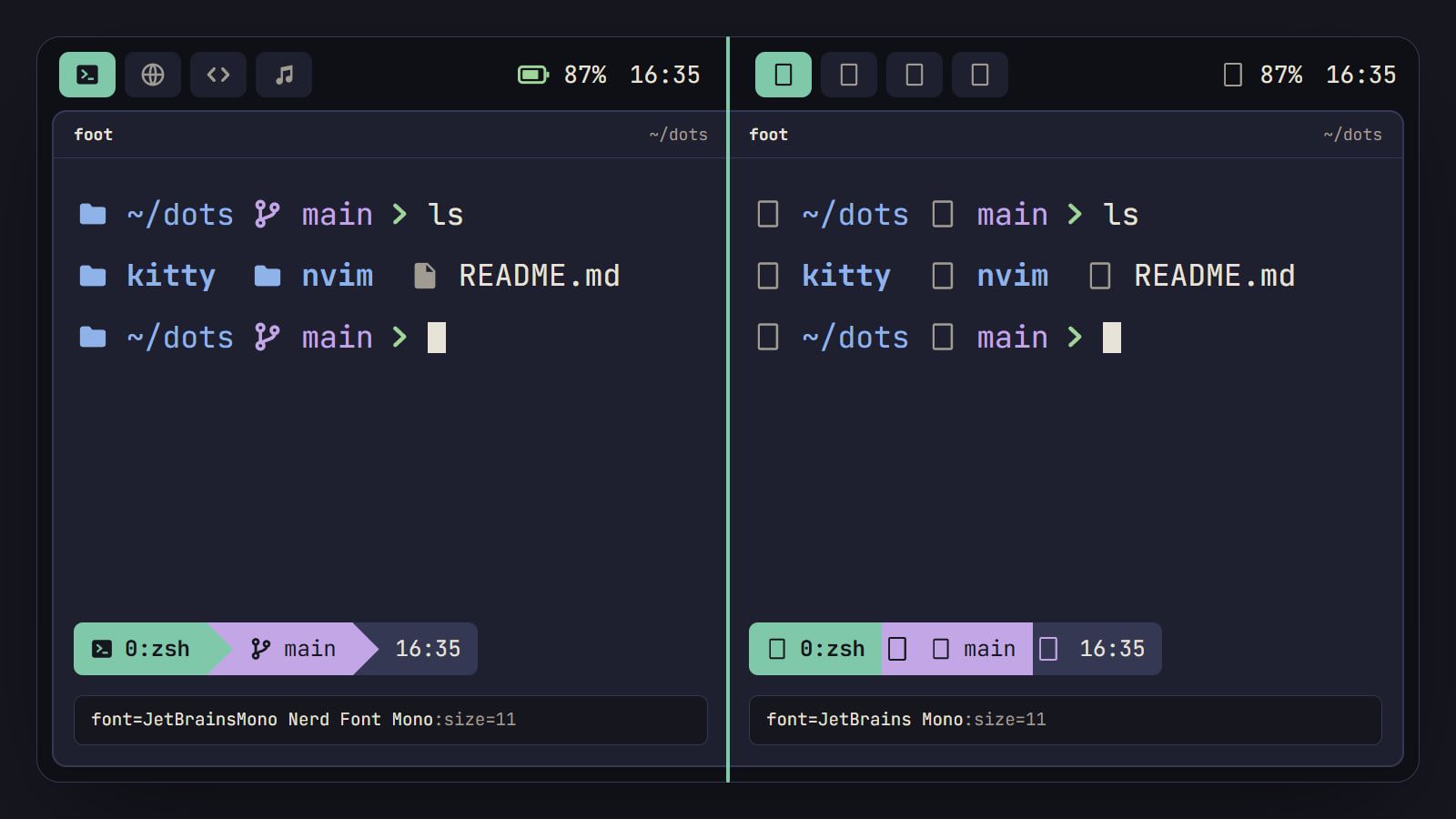
How to install Nerd Fonts on Linux (and fix the boxes)
Pick the right Nerd Font variant, install it from packages or by hand, check it with fc-list, set its exact name in your apps and fix icons that show as boxes.