Cent Symbol on PC Keyboard: Alt Codes and Shortcuts
Need the cent symbol on a PC keyboard? Find Windows Alt codes, Mac and Word methods, phone options, and fixes for when the sign won't appear.
tl;dr the short answer
The cent sign (¢) is a single text character used to write prices or amounts in cents. On a Windows PC, type Alt+0162 using the numeric keypad with Num Lock on, or use Character Map, copy and paste, or an app’s symbol tool; the right method depends on your keyboard and software. If a shortcut fails, try another input method, and switch to a font that supports the character if it appears as a box or question mark.
Ever stopped mid-price list and realized you have no idea how to type the cent sign? It’s a small symbol, but it shows up on receipts, budgets, and spreadsheets, and it’s easy to get stuck on when you need it fast.
The cent sign (¢) is a single character for prices under a dollar, and there’s more than one way to get it on screen. The method that works depends on your system, your app, and your keyboard layout.
Here, we’ll cover every route, from Windows Alt codes (number sequences typed with the Alt key) to Mac, Word, phones, Linux input methods, and custom keymaps.
Type the Cent Symbol on Windows PC
Windows gives you a few ways to type the cent sign (¢), from a quick keyboard shortcut to a visual picker. Pick whichever fits the moment.
Use Alt codes on the number pad
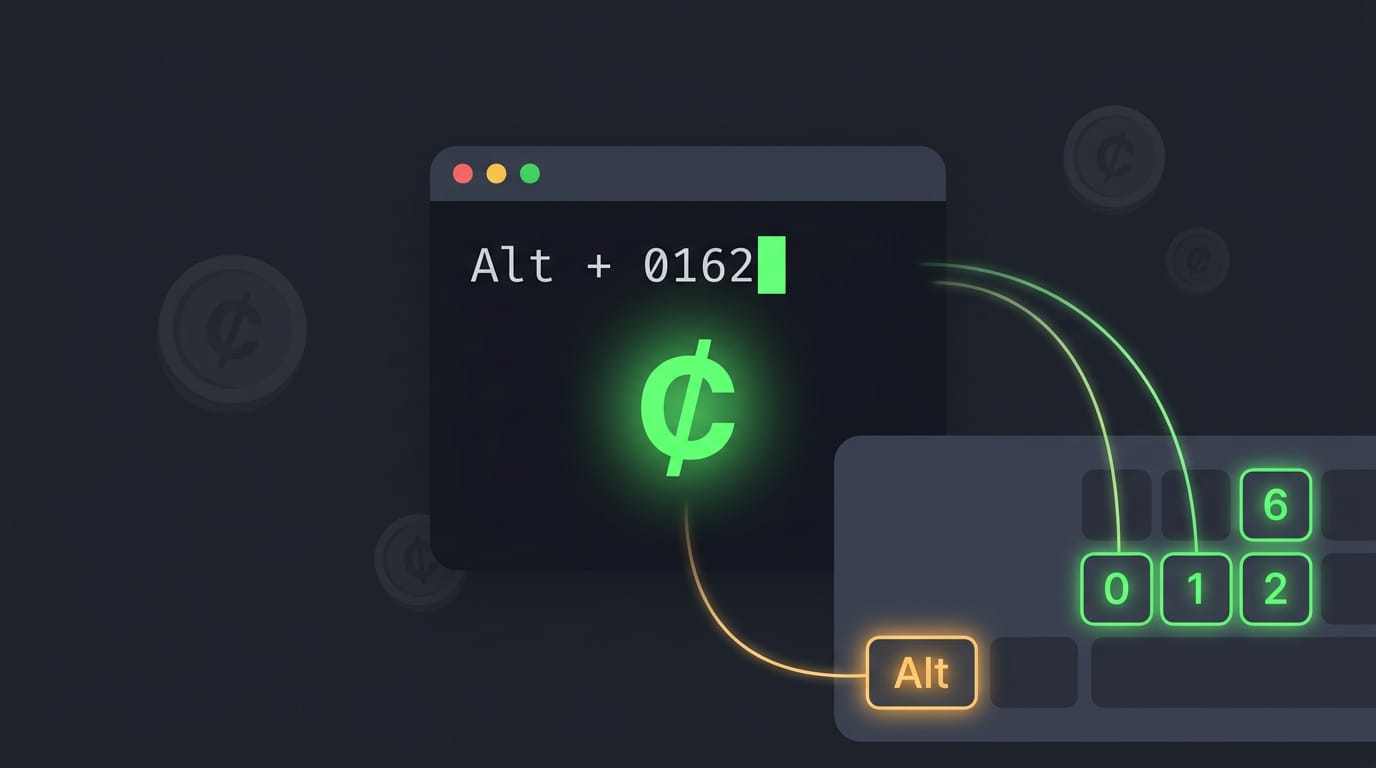
An Alt code is a number you type while holding Alt. The cent sign’s code is 0162, and you type it on the number pad on the right side of your keyboard, not the number row across the top.
- Turn on Num Lock first, or the number pad sends navigation keys instead of digits.
- Hold down Alt.
- Type 0162 on the number pad.
- Release Alt, and the ¢ appears.
Typo a digit and you’ll get a different character. Try again. Once it’s in your fingers, it sticks.
Pick the symbol in Character Map
Don’t want to memorize codes? Open Character Map from the Start menu, then:
- Search for “cent sign” and select the ¢.
- Click Copy, then paste it where you need it.
The window also lists each symbol’s Alt code, so it doubles as a cheat sheet. It’s a handy fallback on non-US layouts too, since you pick the symbol on screen instead of hunting for a key that may sit somewhere else.
Copy the symbol and paste it
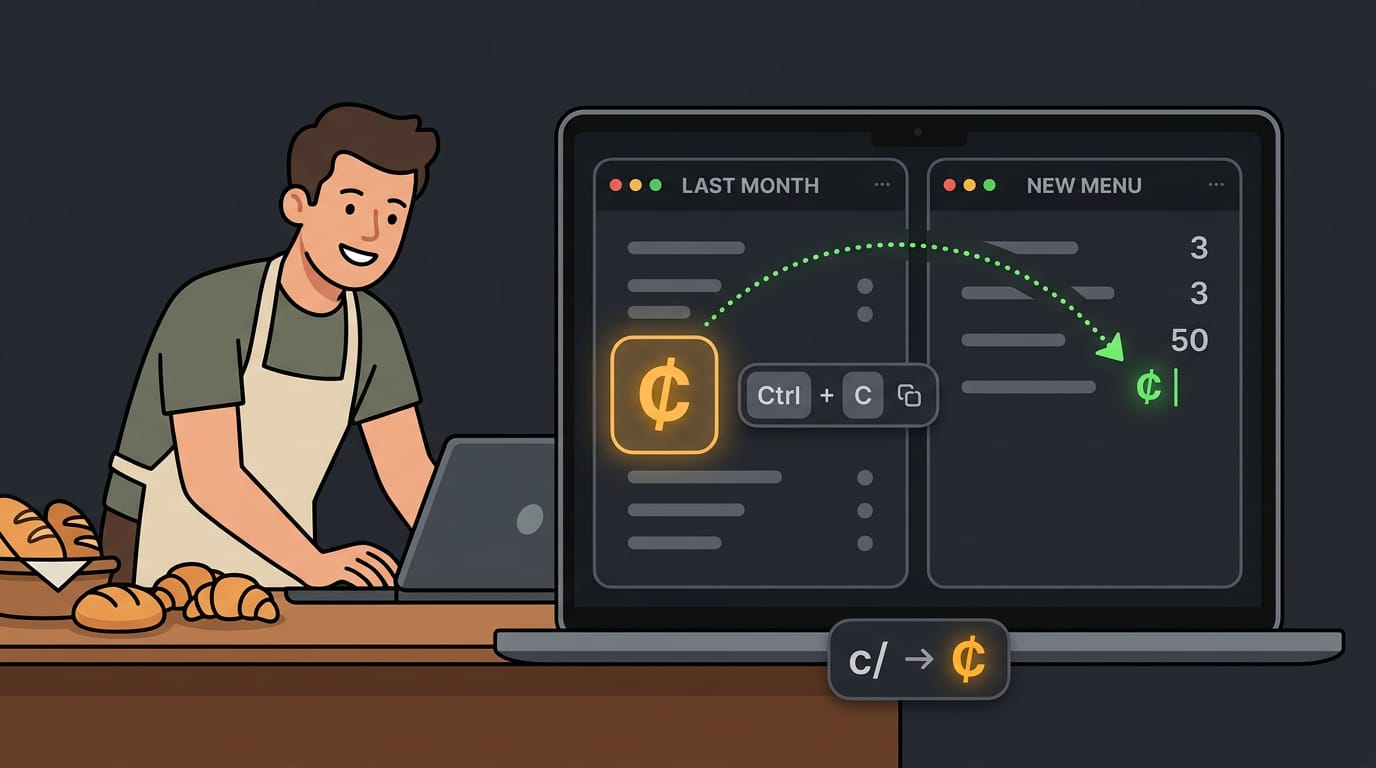
Already have a ¢ on a web page or in a document? Select it, press Ctrl+C, then press Ctrl+V wherever you want it.
Think of a bakery owner updating a Word menu. Copy the ¢ from last month’s version, paste it into the new prices, and keep typing.
Typing the symbol often? A hotstring skips the copy step. It’s a short trigger that swaps in other text. With AutoHotkey running, the script line ::;cent::¢ replaces ;cent with the symbol.
The leading semicolon stops it from firing inside words like decent.
Typing it in design software like Photoshop
Design apps have their own text tools, and the Alt code works in them too. Select the Type tool, click where the text goes, then hold Alt and type 0162 on the number pad.
Think of a freelancer building a sale poster who needs a ¢ in the headline. The Alt code drops it in right at the cursor, so the poster comes together without switching apps.
Get the Cent Sign on a Mac
Macs give you two quick ways to type ¢: a keyboard shortcut for when your hands are already on the keys, and a visual picker for when you’d rather browse. Pick whichever fits the moment.
Use the Option plus 4 shortcut
Hold the Option key and press 4 to type ¢. The cent sign shares a key with the dollar sign, so the easy memory trick is Option + $. Option + 4 gives you the cent sign, not the dollar sign printed on that key.
This shortcut assumes the US keyboard layout. If you’ve switched to another layout, the 4 key may type a different symbol, so check your keyboard input source before you go hunting for it.
MacBook Air users can use these same steps, so there’s nothing extra to set up. Picture a student typing a bake sale price list on a MacBook Air. Option + 4 drops the cent sign right into the cell, and the prices are finished before the cookies cool.
Insert it from the Character Viewer
When you’d rather not memorize anything, open the Character Viewer and let it do the work. Follow these steps:
- Press Control + Command + Space to open the Character Viewer.
- Search for cent sign in the search box.
- Double-click the ¢ to insert it into whatever you’re typing.
No memorizing required, and the Character Viewer is handy for any symbol you don’t use often.
Add the Cent Symbol in Microsoft Word
Word has a few quick routes to the cent sign, and none of them need a special keyboard. Here’s how each one works, and we’ll start with the fastest.
Fastest shortcut built into Word
Word has a built-in shortcut for this: press Ctrl + /, then press C. There are no menus to dig through and no codes to look up, which makes it the fastest method in Word. If you type cents often, this is the one worth memorizing.
Type 00A2 then press Alt+X
This is your backup if the Ctrl + / shortcut doesn’t respond on your setup. It relies on Unicode, the standard that gives every character its own code number. The cent sign’s code is 00A2 in hexadecimal (hex), a base-16 counting system. To use it:
- Type
00A2. - Press
Alt + X.
Word swaps the code for ¢ right where your cursor sits.
Pick it from the Symbol menu
Prefer clicking to remembering? Go to Insert > Symbol > More Symbols. In the dialog, choose Unicode (hex), enter 00A2, and click Insert. It’s a good starting point for beginners because you can see the ¢ before you commit to it.
Create your own AutoCorrect shortcut
Think of a Linux tinkerer who dual-boots into Windows once a week to send invoices from Word. Any price with cents needs that symbol, so they set up a custom shortcut and never open the Symbol dialog again.
Set it up through AutoCorrect, Word’s tool for replacing text as you type. Go to File > Options > Proofing, open AutoCorrect Options, and enter /cent in the Replace box and ¢ in the With box. From then on, typing /cent produces ¢ automatically.
This is the best fit for frequent use, since the setup happens once and pays off every time after.

Compare methods to find your best fit
Each method suits a different kind of writer, so match the choice to how often you need the symbol.
| Method | How it works | Best for |
|---|---|---|
Ctrl + /, then C |
Key combo, no menus | Everyday typists who want speed |
Type 00A2, then Alt + X |
Type the code, then convert | Backup when the shortcut fails |
| Insert > Symbol > More Symbols | Click through the dialog | Beginners |
AutoCorrect /cent |
Set up once, then type | Frequent writers |
The method that’s easiest to learn isn’t always the one that’s fastest to use. Start with the Symbol menu if you’re new, then graduate to a shortcut you’ll actually remember. Muscle memory wins.
Using It on Other Devices and Apps
Your phone, Linux desktop, and documents each handle the cent sign differently, so here’s how to reach it on each.
Getting it on your phone
- iPhone: hold the $ key, then slide to ¢ and lift.
- Copy and paste: copy a ¢ from anywhere and paste it in.
- Text replacement shortcuts: pick a short phrase you’d never type by accident, and have it expand into ¢.
- Gboard personal dictionary: Gboard is Google’s Android keyboard. Save ¢ with a shortcut, and typing that shortcut brings it up.
Typing the cent sign on Linux
The first route is a hex code, a base-16 number that identifies a character:
- Hold Ctrl and Shift, then press U.
- Type 00a2.
- Press Space to get ¢.
This needs GTK apps (the toolkit many GNOME programs use) or the IBus input framework (Intelligent Input Bus) running, so test it in your editor first.
The second route is the Compose key, which turns short key sequences into symbols. Press Compose, then c, then /, and you get ¢.
Picture a Linux user typing prices all day. Once Compose is set up, the cent sign takes three keypresses, and a sequence you remember beats a symbol you hunt for.
Want one key every time? Bind the cent sign to AltGr, the extra-symbol key on many international layouts, in your XKB keymap (the layout system most Linux desktops use).
Google Docs, email, and social media
Google Docs has a special characters tool under its Insert menu, so you can drop ¢ into a document without leaving the page.
Emails and social media posts take ¢ as plain text, so a copied symbol pastes right in. Copying suits a one-off, but a shortcut is the repeatable choice. Done.
Common Uses and Fixing Problems
The cent sign shows up in more places than you’d expect, and when it won’t appear, the cause is usually simple. We’ll cover where you’ll see it and what to check.
Where the cent sign shows up
Prices and invoices, flyers and product listings, and accounting or school work all use it. Writing 99¢ versus 99 cents is mostly style: the symbol suits a tight flyer, while spelling it out reads better in sentences.
Why your shortcut isn’t working
The shortcut only works when a few things line up:
- No numeric keypad. Many laptops skip it, and the shortcut needs one.
- Num Lock confusion. With Num Lock off, the keypad won’t type the digits.
- Cursor in the wrong spot. Make sure you’re typing inside the document.
- Try alternate methods. Copy a cent sign from a working document, or handwrite one by drawing a C with a single vertical line through it.
So how do you write the cent sign when the shortcut fails? Pick another method instead of retrying the same keys.
Picture a Linux user on a thin laptop with no keypad, helping their kid finish a grocery budget worksheet. They paste one ¢ from an earlier file into each row, and the worksheet is done before dinner.
Fixing a box or question mark
A box or question mark means a font problem, not a keyboard one. Each character needs a glyph, the drawn shape a font uses for it, and the current font may lack one for the cent sign. The character is there; the font just can’t draw it.
Unicode is the standard that assigns every character a code, and Noto fonts cover Unicode. Install a Noto font, switch your app to it, and the box becomes a cent sign. That’s the whole fix.
Its History and Technical Codes
Before we pick a typing method, it helps to know what the cent sign is and how systems refer to it.
Unicode details for the cent sign
Unicode assigns each text character a unique number, called a code point. The cent sign is U+00A2, which is decimal 162.
It sits in the Latin-1 Supplement block, a range of characters that extends the basic Latin set, and it belongs to the currency symbol category. It was added in Unicode 1.1, and it’s not an emoji, so treat it as plain text.
Say you’re a Linux user building a budget spreadsheet: knowing U+00A2 lets you look up the symbol instead of hunting for a key.
Codes for HTML, CSS, and JavaScript
HyperText Markup Language (HTML) can write the cent sign as:
- the decimal reference
¢ - the hexadecimal reference
¢ - the named entity
¢
All three display the same ¢.
Cascading Style Sheets (CSS) can insert it with content: "\A2"; inside a ::before or ::after rule. JavaScript uses "\u00A2" inside a string.
The syntax changes from language to language, but the code point underneath doesn’t. Same character, different doors.
Where Alt codes came from
The early ASCII standard, short for American Standard Code for Information Interchange, covered English letters, digits, and common punctuation. The cent sign wasn’t in it.
International Business Machines (IBM) then extended the table with its own code pages, sets of characters assigned to numbers. It filled the unused upper range with extra symbols, and the cent sign landed there.
Microsoft’s Windows code pages later assigned that upper range differently, so the same number can show a different symbol depending on the code page. That’s part of why Alt codes can behave differently across old and new software.
Whether you’re on a Windows PC, a Mac, or a Linux machine with a custom keymap, you now have a dependable way to get the cent sign without hunting around.
Pick the method that fits your setup and keep it somewhere you’ll find it again. Your keyboard can make the cent sign. Now you know how to ask.
Questions
What is the alt code for cent?
On Windows, the cent sign’s Alt code is 0162. Hold Alt and type 0162 on the numeric keypad with Num Lock on, then release Alt.
How to get sign symbol on keyboard?
The method depends on your device and keyboard layout. On Windows, hold Alt and type 0162 on the numeric keypad; on a Mac with a US layout, press Option + 4. You can also copy and paste ¢ or use your device’s symbol picker.
How do I write the cent sign?
The cent sign is written as ¢. On Windows, hold Alt and type 0162 on the numeric keypad; on a US-layout Mac, press Option + 4. You can also copy and paste the symbol.
Does the iPhone keyboard have a cent symbol?
Yes. On the iPhone keyboard, press and hold the $ key, slide to ¢, and lift your finger to insert it.