Bash Script Directory: How to Get It Right
Bash script directory lookup keeps dotfile installs anchored to the script, not your terminal, and handles symlinks, sourced files, and Stow setups.
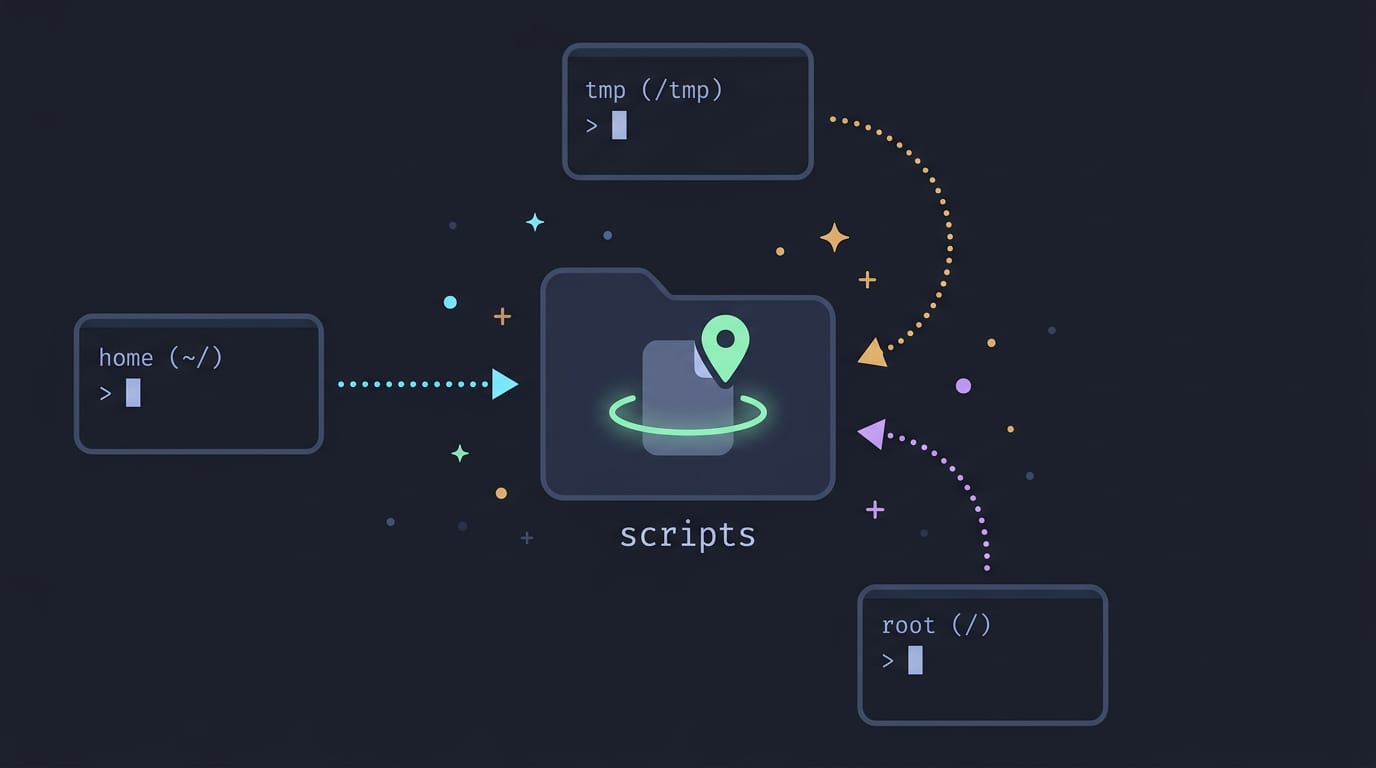
tl;dr the short answer
A Bash script’s directory is the folder containing the script, which can differ from the terminal’s current working directory. Use `dirname` with `$0` for a simple executed script, or `BASH_SOURCE[0]` when the file may be sourced; resolve symlinks when you need the real script location, and quote paths so spaces work. Building file paths from the script’s location helps installers and helper scripts find their files wherever you run them.
Ever walked back to a parking garage, hit the key fob, and realized you were on the wrong level? Your car hasn’t moved, but you’re looking from somewhere else.
Scripts have the same problem. Where you run a script from and where the script actually lives are often different folders, and mixing them up breaks install steps.
The short answer is to ask bash where the script file itself lives, not where your terminal currently sits.
In this post, we’ll cover $0, BASH_SOURCE, symlinks, sourced scripts, and portability, then apply it to dotfiles install scripts and stow-managed setups.
Setting up for Bash Get Script Directory
Before you find where a script lives, you need a shell to test in and a clear sense of where you’re typing from. Here’s a quick setup, then a tiny script you can run yourself.
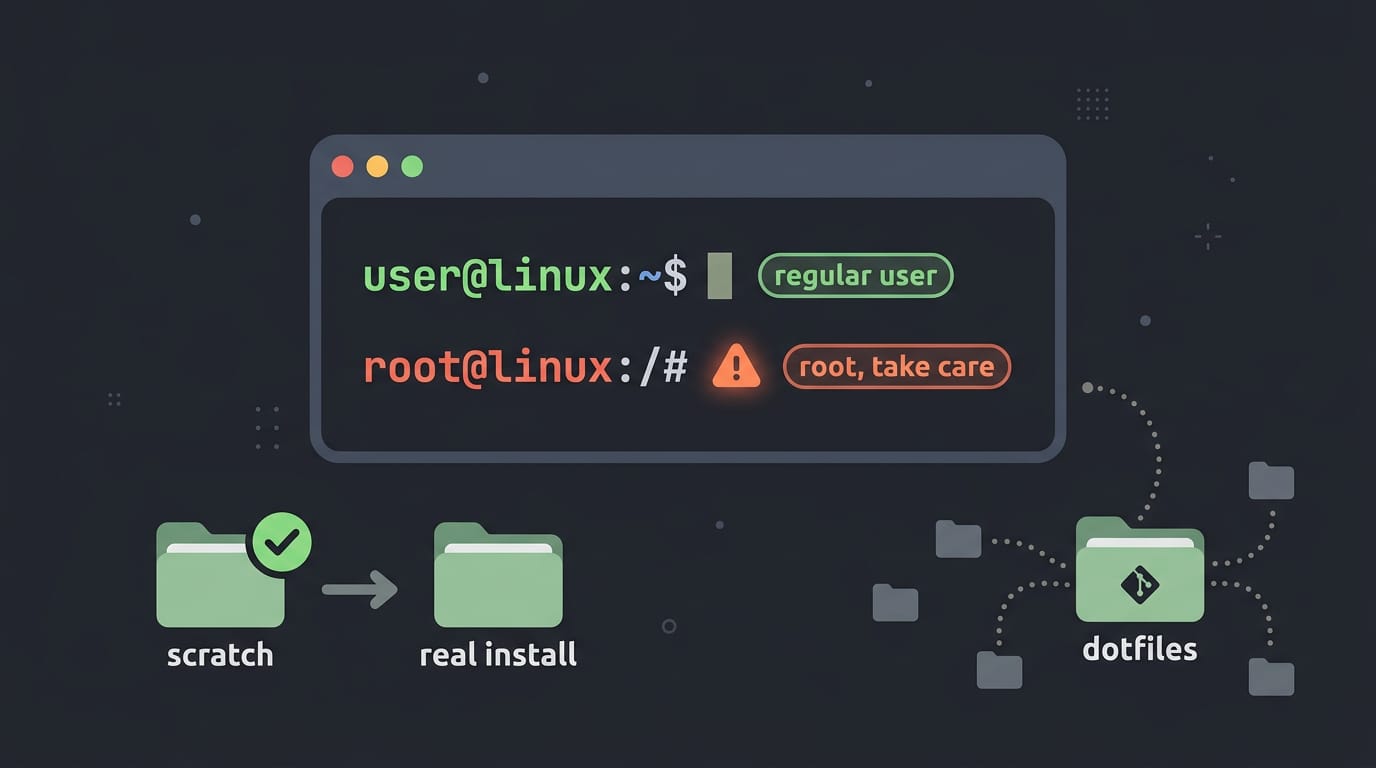
Know your shell environment and prompts
These steps are distribution-independent, so they work on any Linux distro, from Debian to Arch. We’re focusing on Bash on Linux. Check your version with bash --version.
Your prompt shows your privileges too:
- A
$means a regular user, so scripts run with your own permissions. - A
#means root, the admin account, so take extra care.
If a command isn’t found, install it with your package manager (apt, dnf, or pacman) and try again.
Think of a Linux user who keeps dotfiles in a git repo and wants an install script that works from any folder. Testing in a scratch folder first catches path problems before the real install runs.
Walk through a small working example
Start with a scratch folder, then create the script with touch and add two lines with echo:
mkdir -p ~/practice/scripts
cd ~/practice/scripts
touch get_dir.sh
echo 'echo "pwd says: $(pwd)"' >> get_dir.sh
echo 'echo "script path: $0"' >> get_dir.sh
Mark it executable with chmod +x get_dir.sh, which adds execute permission. Then step up a level and run it from the parent directory:
cd ~/practice
./scripts/get_dir.sh
You’ll see something like this:
pwd says: /home/you/practice
script path: ./scripts/get_dir.sh
Compare the two lines. pwd reports where you’re standing, while $0 reports how the script was called. Same script, different answers.
Why Knowing Where Your Script Lives Matters
Every script lives in a folder, and that folder is its script directory. A script that runs fine in one spot can break the moment you launch it from another.
Times you’ll need your script’s location
These are the situations where you’ll need it:
- Scripts calling other scripts. The caller has to find its helper wherever it was started.
- Fully qualified paths. A relative path like
./lib/utils.shonly works from the right folder, so build the full path from the script’s own location. - Script started from elsewhere. A cron job, which is a task that runs on a schedule, may launch it from a completely different folder.
- Relative invocation breaks assumptions. Calling
../setup.shfrom a subfolder changes what ‘here’ means to the script. - Reusable shared function. A helper file that several scripts load (source) has to be found from where each script lives, not where it’s called.
- Dotfiles install scripts locating the repo. The install script needs your dotfiles repo to link its configs, even when launched from a fresh home folder.
Think of a Linux user who keeps her dotfiles (config files whose names start with a dot) in ~/dotfiles.
On a new laptop she runs ./install.sh from her home folder, and the script finds the repo on its own and links every config into place, so she’s back at her familiar desktop without hunting for paths.
The question isn’t where you ran the command from, but where the script lives. Nobody wants to debug a broken path at 1am.
Why Pwd Alone Falls Short
Your first instinct might be to reach for pwd to find out where a script lives. It looks like the obvious answer, but it measures something different, and that catches a lot of people off guard.
What pwd and ${PWD} actually print
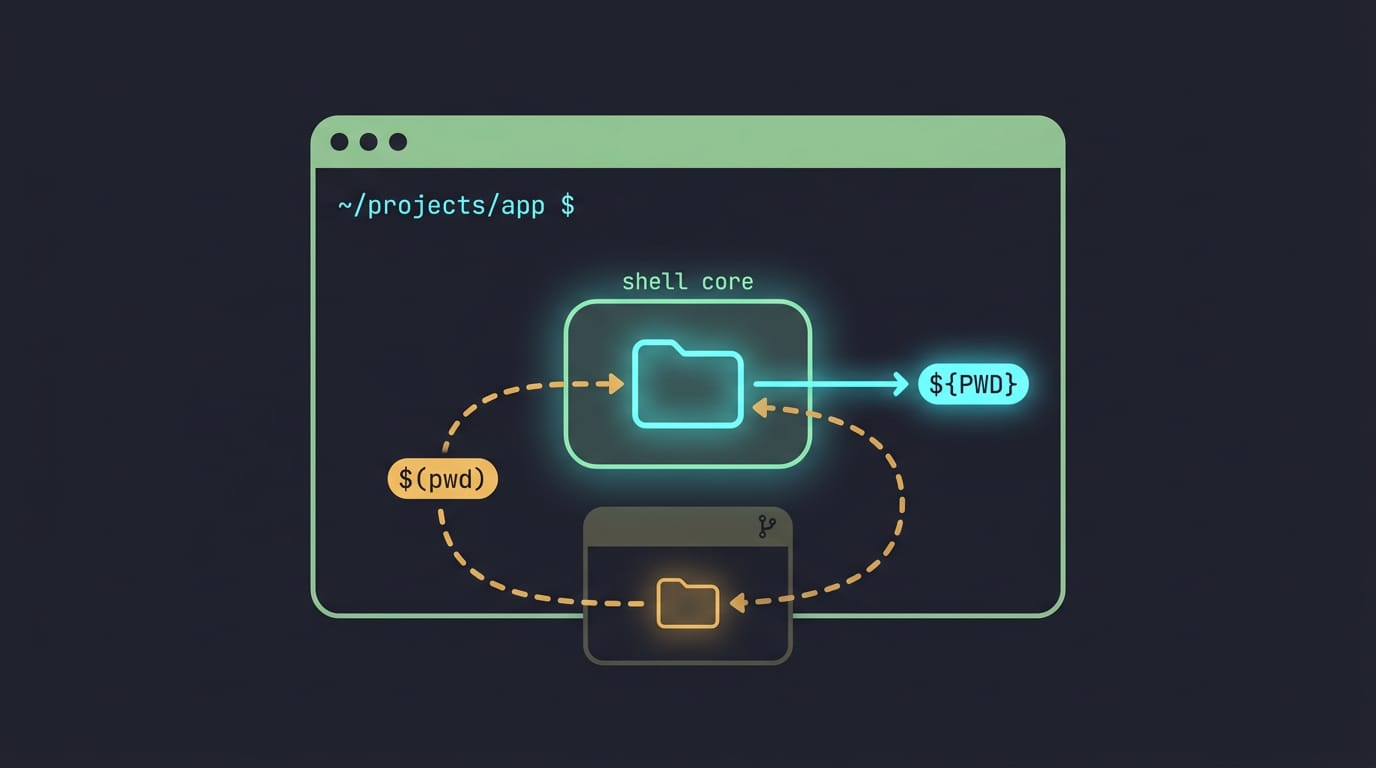
The pwd command prints the current working directory, the folder your shell is in right now. Bash also keeps that same value in the ${PWD} variable.
Calling $(pwd) starts a subshell, a child process, just to fetch a value the shell already holds, so ${PWD} is the lighter choice. Either way, the output behaves the same inside a script as it does at your prompt.
Where pwd gives you the wrong folder
Here’s the catch: pwd returns the caller’s directory, meaning wherever the person running the script happened to be. That matches the script’s own folder only when you run it from there.
Bash also doesn’t ship with a variable that holds the script’s location, so pwd is the answer people reach for, and it’s often the wrong one.
Say Roel keeps setup.sh in /home/roel, right next to the dotfiles it installs. One day he’s sitting in /tmp and runs /home/roel/setup.sh from there.
Inside the script, pwd prints /tmp, so the script hunts for its dotfiles in the wrong place and the install comes up empty.
The script needs to know where it lives, not where you are.
Ways to Find a Script’s Folder
Your install script needs to find the configs beside it. Here’s how we get that folder, starting with the simplest method:
Use dirname on $0, then cd and pwd
The quickest option is MYPATH="$(cd "$(dirname "$0")" && pwd)". $0 holds the path you called the script with, so dirname strips the filename, cd enters that folder, and pwd prints the full path. Relative calls like ./bootstrap.sh work too.
Sibling scripts are one variable away: "$MYPATH/install-fonts.sh". Those quotes matter. A Linux user with dotfiles in ~/My Dotfiles would see an unquoted path split at the space, while the quoted one still works.
Using BASH_SOURCE and realpath together
There’s a catch with $0. When a script is sourced (run through source or .), $0 names the calling shell instead. BASH_SOURCE avoids that, because BASH_SOURCE[0] always names the running file, whether it was executed or sourced.
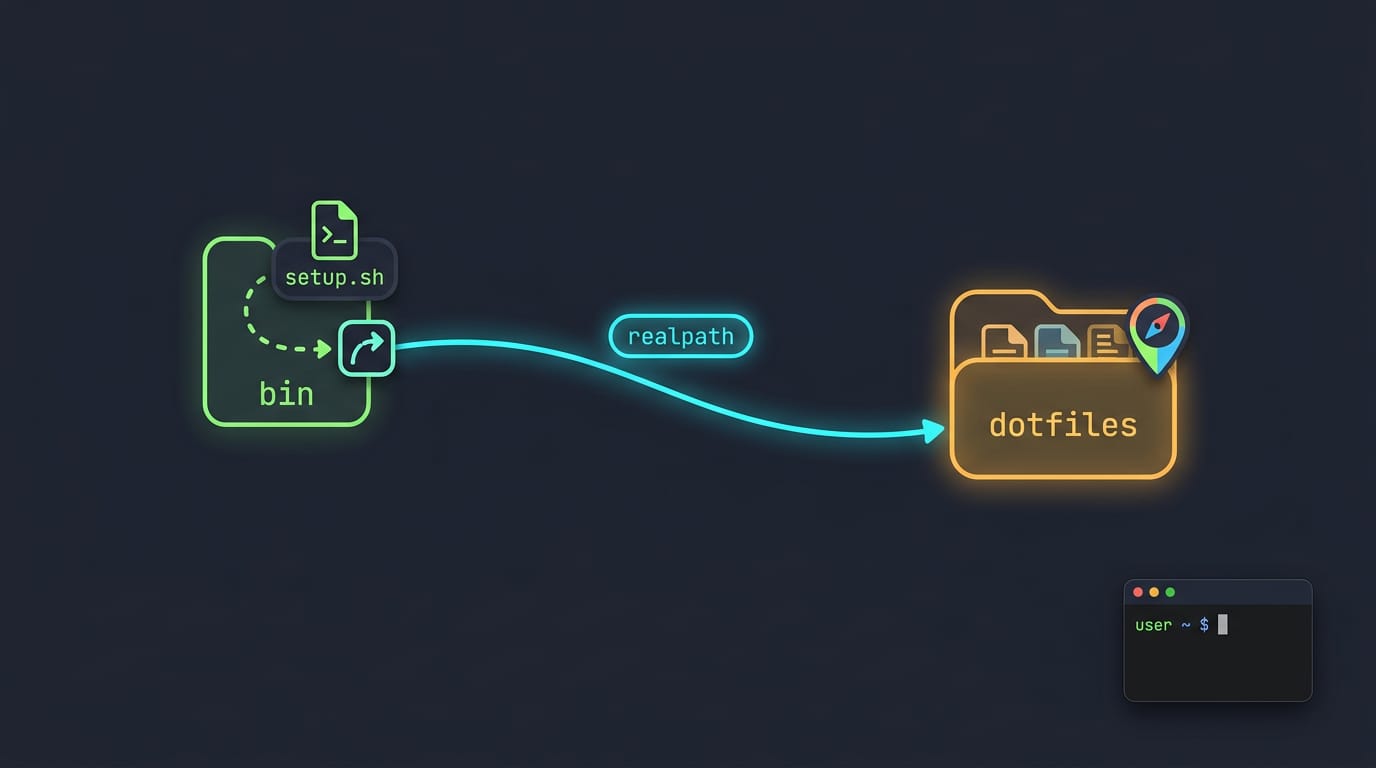
A symlink (a shortcut to another file) hides the real location, since BASH_SOURCE[0] names the link itself. Pass it through realpath to get the absolute path of the real file, then take dirname:
get_script_dir() {
  dirname "$(realpath "${BASH_SOURCE[0]}")"
}
Picture a Linux user who runs ~/bin/setup.sh, a link into ~/dotfiles. The function still returns the real folder, so the configs get linked correctly. Same script, correct folder.
Backup options if realpath isn’t there
Not every system ships realpath, so the snippet falls back to readlink -f for symlinks. Failing both, pwd is the last resort, but it only returns the folder you’re standing in, not the one the script lives in. Treat it as a guess, not a plan.
For bootstrap scripts, drop this in:
get_script_dir() {
  local src
  src="$(realpath "${BASH_SOURCE[0]}" 2>/dev/null || readlink -f "${BASH_SOURCE[0]}" 2>/dev/null)"
  [ -n "$src" ] && dirname "$src" || pwd
}
SCRIPT_DIR="$(get_script_dir)"
Handling Symlinks and Unusual Setups
A symlink (symbolic link) is a pointer that stands in for the real file, so dirname can report the link’s folder instead of the script’s. Resolving the link first fixes that, and here’s a portable way we can do it.
How symlinked scripts still find their folder
Consider a Linux user who keeps backup.sh and its config.ini in ~/dotfiles/bin, then links the script into ~/.local/bin so it runs from anywhere. Without resolving the link, the script looks for config.ini in ~/.local/bin, where it isn’t.
Ask where the script lives, not where the link sits.
Links can be relative too, like ../../dotfiles/bin/backup.sh. That path is measured from the link’s own folder, not from wherever you typed the command. The loop below joins it onto that folder, so relative links resolve correctly.
SOURCE="${BASH_SOURCE[0]}"
while [ -L "$SOURCE" ]; do
  DIR="$(cd -P "$(dirname "$SOURCE")" && pwd)"
  SOURCE="$(readlink "$SOURCE")"
  [[ $SOURCE != /* ]] && SOURCE="$DIR/$SOURCE"
done
SCRIPT_DIR="$(cd -P "$(dirname "$SOURCE")" && pwd)"
Stow, a tool that links dotfiles from a repo into your home folder, works the same way. Its links are often relative, and the script it places in ~/.local/bin points back into your repo.
Follow the chain and the real path sits beside your other files. Your config lookup just works.
On most Linux systems, readlink -f follows the whole chain in one call. It’s tempting to write dirname "$(readlink -f "${BASH_SOURCE[0]}")", but macOS lacks readlink -f, so that line fails there. Handling that means choosing a different command per platform, which an if statement can do.
The loop above uses plain readlink, which both systems support, so it’s the safer choice on Macs.
Getting a script’s own directory really comes down to one habit: ask where the file lives, not where you happen to be standing.
Pick the method that fits your setup, handle symlinks so you land on the real location, and keep portability in mind if the script travels.
Do that, and your install steps won’t break just because you ran them from the wrong folder. Your dotfiles should find their own files no matter where you run them from.
Read next.
Shell Script If Statements: A Complete Guide
Shell script if statements let you check files and strings before commands run. See which test operators work and avoid portability traps in setup scripts.
GitHub filename too long: causes and every fix
The GitHub filename too long error can stop a clone cold. Fix it with Windows long-path settings, plus WSL and dotfiles cases many guides miss.
Install tar.gz Files: A Complete Guide
Install a tar.gz program by inspecting and unpacking the archive, then choose to compile from source or place ready-to-run files and verify the result.