British Pounds Symbol on Keyboard: How to Type £ Easily
British pounds symbol on keyboard: get £ on Windows, Mac, Chromebook, or Linux, including the Compose key and Unicode shortcut when the key isn’t printed.
tl;dr the short answer
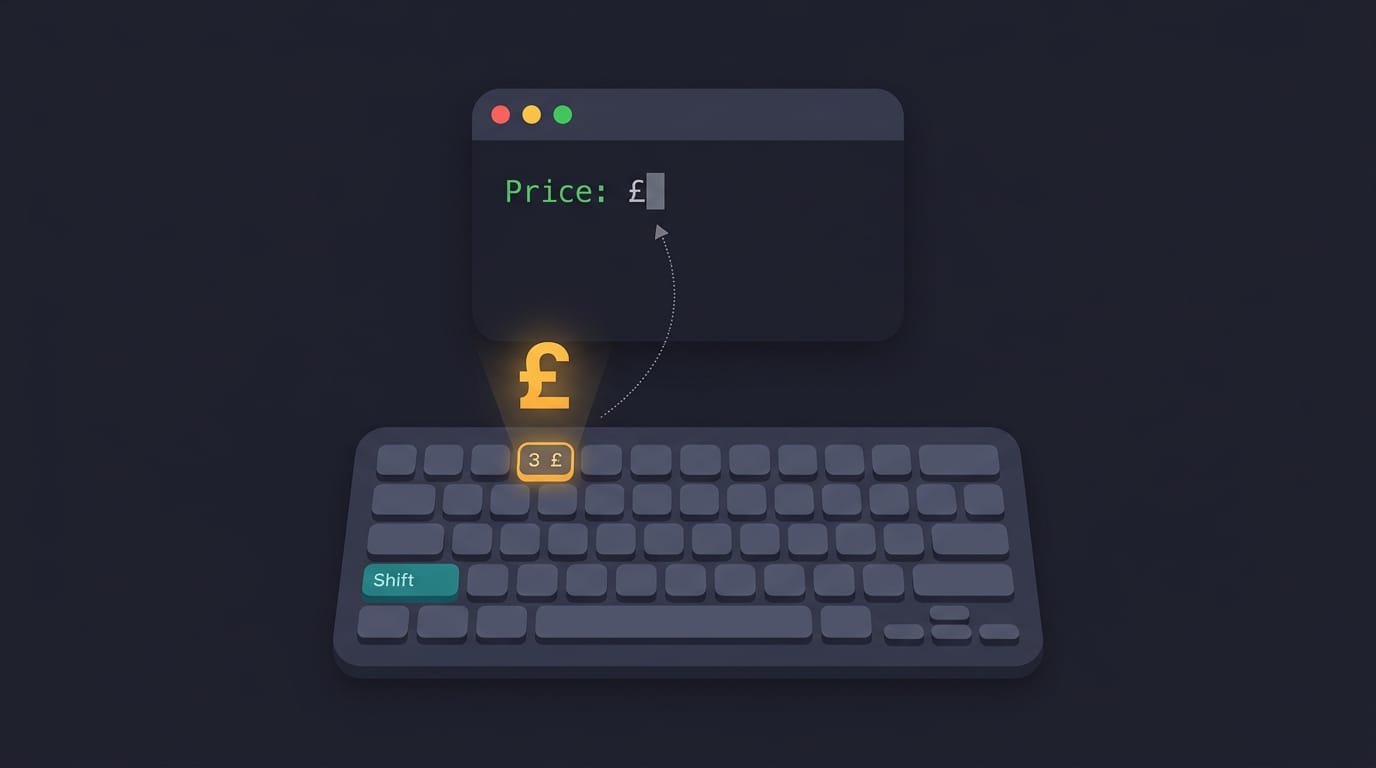
The British pound symbol (£) represents the United Kingdom’s currency, while GBP is its three-letter currency code. How you type £ depends on your keyboard layout and device: a UK keyboard uses Shift + 3, while other systems offer shortcuts, character menus, codes, or copy and paste. Choose the method that suits your setup, and check layout or text encoding if the symbol appears incorrectly.
You’re halfway through an email to a landlord in the UK when you realize you need a pound sign. You scan your keyboard, then scan it again. It isn’t there.
The good news is that the £ is easy to type once you know the method for your system. Windows, Mac, Chromebook, and Linux each have a reliable way to get it, and none of them require a new keyboard.
This guide covers every platform, plus the Linux methods (the Compose key, Ctrl+Shift+U, and the US-International layout) that most guides skip.
Finding the British Pounds Symbol on Keyboard
Whether you’re on a United Kingdom (UK) layout or a United States (US) one decides where the pound symbol lives and how you’ll type it.
What is the symbol for the pound?
The pound sign (£) stands for the British pound, the currency of the United Kingdom. On a UK layout, you’ll find it like this:
- The £ sits on the number 3 key.
- Hold Shift and press 3 to type it.
- Keyboards built for UK use lay it out this way.
Writing GBP versus £ is a different job. Think of £ as the symbol and GBP as the code.
GBP is the three-letter currency code for the British pound, so you type it as the letters G, B, and P. Use £ in running text, like £20, and GBP when a form asks for a currency code.
US keyboards have no pound key
US keyboards have no dedicated pound key. The # sits on the 3 key, so Shift + 3 gives you a hash instead. That’s not a dead end.
Picture a freelancer on a US laptop who needs to invoice a UK client. She presses Shift and 3, gets a #, and switches to a shortcut before the bill goes out.
You’ll need a shortcut or a character code instead. On Linux, the Compose key, Ctrl+Shift+U, and a US-International layout all get you there.
To identify your layout, check the 3 key. If it shows £, you’re on a UK layout; if it shows #, you’re on a US one. The pound sign isn’t missing; it just doesn’t get a key of its own.
Getting the Pound Sign on Windows
On a US (American) keyboard, which has no dedicated £ key, you have three main options: an Alt code for quick one-offs, Character Map when you can’t recall a code, or a UK (British) layout if you type pounds all day. Here’s how each one works. The cent symbol works with Alt codes too, so one method covers both currency signs.
Type the pound with an Alt code
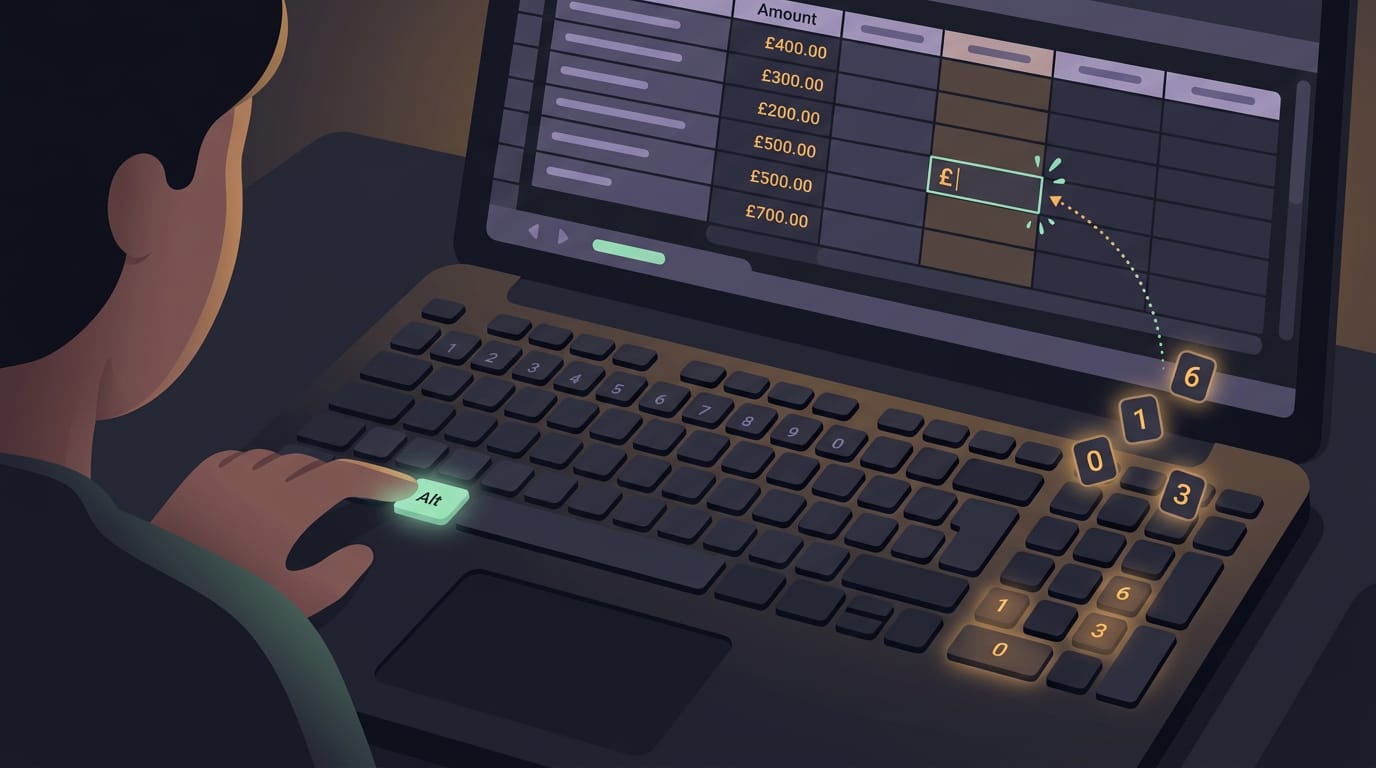
Hold Alt, type the pound’s code on your keypad, then let go. The £ appears at your cursor. Check three things first:
- A numeric keypad is required, so the number row across the top won’t work.
- Num Lock must be on, or the keypad types arrows instead of numbers.
- This trick is Windows only.
Picture a student building a budget spreadsheet with a £ in every other row. Alt plus the keypad keeps them in the flow.
When your laptop has no keypad
Many laptops skip the numeric keypad, so the Alt code has nothing to run on. Some hide one inside the letter keys, toggled with the Fn (Function) key plus NumLk, but not every laptop has it, so test yours first.
If you have no keypad at all, plug in an external keyboard or open the on-screen keyboard from Start. Picture a freelancer on a slim ultrabook sending an invoice from a coffee shop.
A small external keyboard brings the Alt code back, and the invoice goes out on time.
Copy the pound from Character Map
If you’d rather not memorize anything, Character Map does the work for you:
- Search for Character Map in Start and open it.
- Switch to Advanced view and search for ‘Pound’.
- Select the £, click Copy, and paste it where you need it.
It takes more clicks than an Alt code, but there’s nothing to remember.
Switch Windows to a UK layout
A UK layout is the better pick if you type pounds all day. An Alt code adds one symbol, but a layout switch changes every key. Go to Settings > Time & Language, add the UK layout, and select it.
Every key follows the new layout, so you’ll want to check the symbols you use most before typing code or passwords. Set it once and forget the codes.
Typing the Pound on Your Mac
Your Mac has a built-in shortcut for the pound sign (£) that works almost everywhere, plus a few backups for when your keyboard gets in the way.
Press Option and 3 for the pound
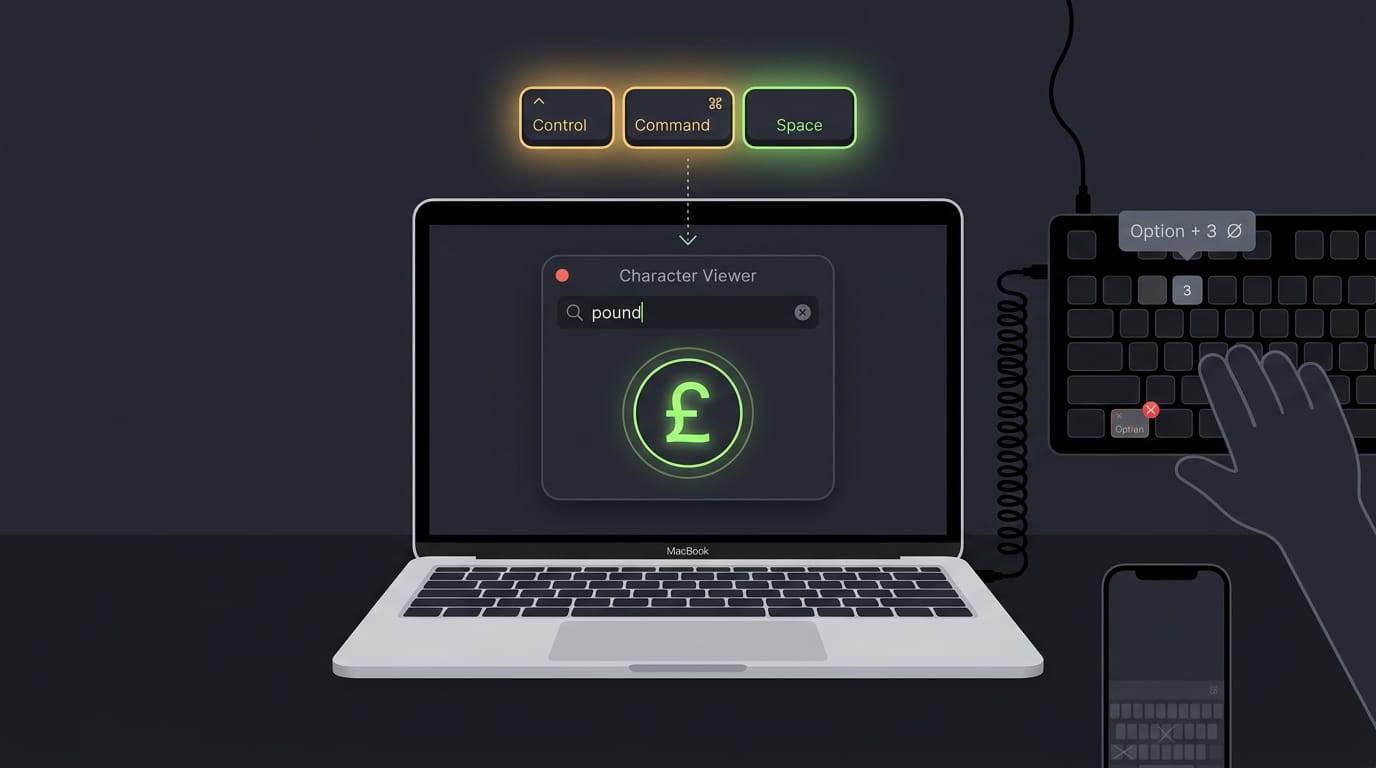
The fastest route is Option + 3, so that’s where we’ll start. Hold Option, tap 3, and the £ appears. It works regardless of layout, so you don’t need to switch input sources or dig through settings. It also works in any app that accepts typed text.
That makes it a shortcut, not a setting. You’ll reach for it without thinking. No setup required.
Backup ways to type it on Mac
When Option + 3 doesn’t cooperate, the keyboard itself is a common culprit. Consider a Linux user who plugs an old Windows keyboard into their MacBook at the desk. Option + 3 might come up empty, but they can still get the £ in seconds with these options:
- External Windows keyboard issue. Windows keyboards don’t always send Option the way a Mac keyboard does, so Option + 3 may not produce a £.
- Character Viewer. A built-in panel of symbols you can browse or search. Search for pound, then double-click the £ to insert it.
- Control + Command + Space. Press these three keys together to open the Character Viewer from anywhere, so you don’t have to hunt through menus.
Mobile keyboards are a different story. iOS and Android phones don’t have an Option key, so these shortcuts won’t carry over to them.
Grab the Symbol and Paste It
Sometimes the quickest route is borrowing a £ that already exists. The trick is to find the sign rather than remember how to type it.
Copy it straight from a web page
Copying skips the memorizing entirely. Think of a Debian user writing a rent reminder who needs one pound sign and has no idea which key makes it. Borrowing one from a page takes moments.
To copy one from a web page:
- Highlight the £ with your mouse.
- Press Ctrl + C to copy it to the clipboard, the temporary holding spot for your last copied item.
- Click where you want the sign and press Ctrl + V.
Many terminals use Ctrl + Shift + V instead, so try that if nothing appears.
Some pages add a click-to-copy button beside the symbol. One click fills your clipboard, replacing what was there, so paste anything you need first.
Symbol sites and character tables
Symbol copy websites exist for this exact job. Search “pound sign,” find a page showing the symbol large, and click to copy. Stick with sites you trust, since you’re pasting what they put on your clipboard.
Under the hood, every character has an entry in Unicode, the standard that numbers each symbol so computers agree. A Unicode table lists them by name, so you’re looking the sign up, not memorizing a code.
Your desktop may also have a character map, an app that shows symbols in a grid. Search your launcher for “character,” select the £, and copy it. Names vary by desktop, so try a similar one if needed.
Typing It in Word and Office Apps
You’ve got two ways to get the pound sign in Office: a quick keystroke that works in Word, and a menu route that also works in Excel and PowerPoint.
Type 00A3 then press Alt+X
Word can turn a hex code (a short base-16 number that stands for a character) into the character itself. Type 00A3, press Alt+X right after it, and the code becomes £.
Say you’re a Linux user filling in a price list in a shared Word file. You type the figure, add 00A3, and hit Alt+X without ever leaving the page. It’s fast once the code is in your head. Quick, and no menus.
A few things to know:
- This works in Word only.
- If it fails, highlight the
00A3text and press Alt+X again.
Use the Insert menu’s Symbol dialog
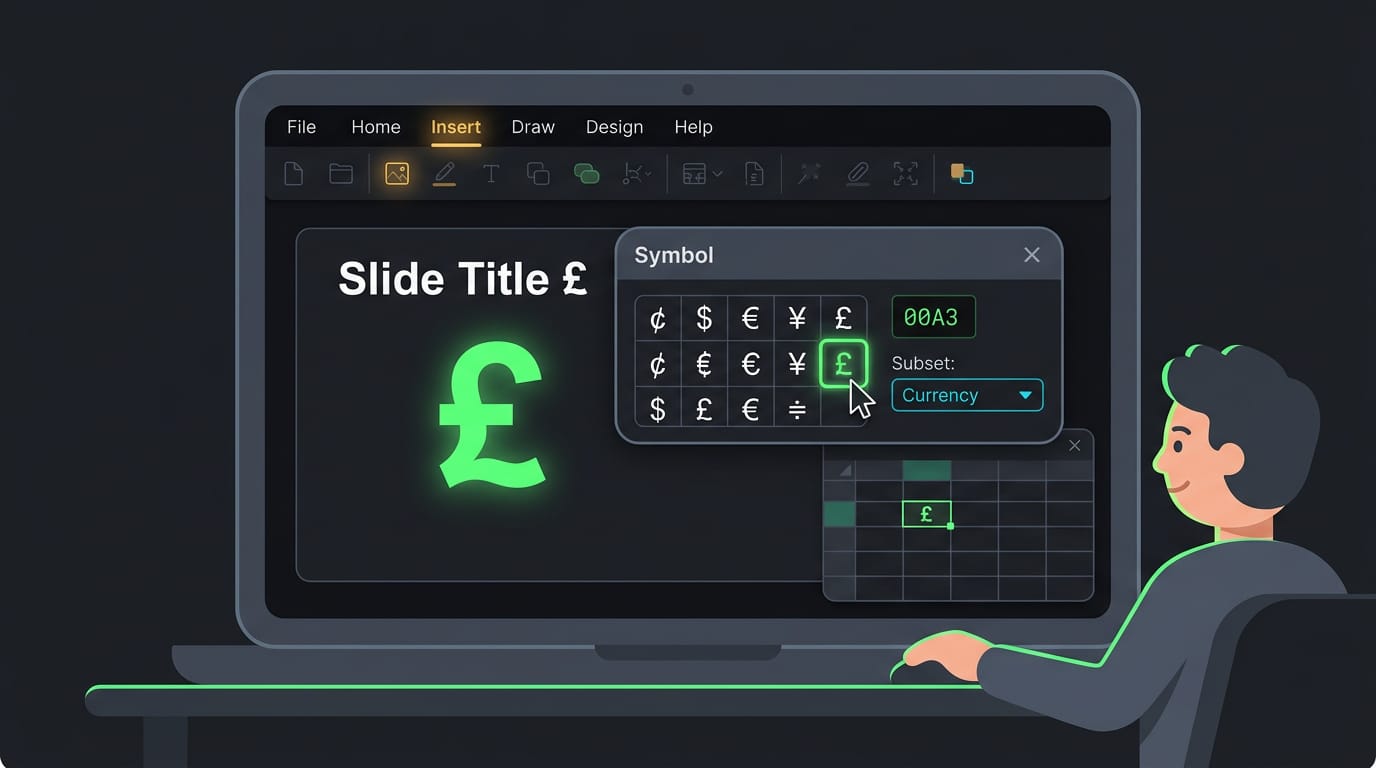
If you’d rather not memorize anything, go through the menus. Click the Insert tab, then More Symbols. In the Symbol dialog that opens, you have two options:
- Pick the Currency subset from the Subset list and select £.
- Enter
00A3in the Character code box.
Either way, click Insert to place it. This route is less about remembering the code and more about finding the sign. Think of a Linux user building a pricing slide in PowerPoint who needs £ in a title.
The dialog gets it there in a few clicks, and the same steps work in Excel when a spreadsheet header needs the sign.
Pound Sign on a Chromebook
Chrome OS gives you a few ways to get the £ sign, and the quickest one depends on your keyboard layout, the setting that decides which character each key produces. Here’s how to try each.
Ways to type it on Chrome OS
Think of a student who just got a Chromebook for a UK school and needs to type £12 into a budget spreadsheet. These are the routes that put the symbol on the page:
- Shift + 3 on a UK layout. If your keyboard is set to UK, the £ sits on the 3 key, so press Shift + 3 and it appears.
- Ctrl + Shift + U, then 00A3. Hold Ctrl and Shift, press U, type 00A3, then press Enter to insert the symbol.
- Add the UK layout. Open your keyboard settings and add the UK layout, and Shift + 3 will work from then on.
It’s less about the key combo and more about the layout. Shift + 3 only gives you a £ when the layout is set to UK, so add it first if you’re not sure. Set it once and you’re done.
Web Codes and Troubleshooting Tips
Sometimes the pound sign has to live in a web page, where your keyboard shortcut can’t help. Here’s how we do it, plus what to check when it misbehaves.
Pound codes for HTML, CSS and Unicode
Each standard writes £ its own way, but they all point to the same character:
- HTML entity code:
£is the named version, and browsers draw £ from it. - Decimal code:
£is the numeric version, if you’d rather use a number than a name. - CSS code:
\00a3works inside acontentproperty, such ascontent: "\00a3";before a price. - Unicode as standard: £ is U+00A3 in Unicode, the shared character set that Linux, Windows, and macOS all use.
Why pound signs break or look wrong
When a £ misbehaves, one of these is usually behind it:
- Symbols showing as boxes: the font has no glyph for the character, so your system draws a placeholder box.
- Missing fonts: a minimal install may lack the font that carries the symbol, so it vanishes or falls back to something else.
- Garbled characters: a file saved in one text encoding and read in another turns £ into “£”. Saving as UTF-8 usually fixes it.
- Font appearance differences: serif and sans-serif fonts draw £ differently, so a price can look slightly off without being broken.
A freelancer on a minimal Arch install builds a one-page invoice in plain HTML. Their £ shows as a box until they add a font with the glyph, and after a file edit on another machine it turns into “£”.
Writing £ sidesteps that, so every client sees the right total.
The symbol itself is rarely the culprit. The real question is how your system reads it. When in doubt, use the HTML code alternative and move on.
Typing the pound sign comes down to knowing the method for your setup. Windows and Mac have their own built-in approaches, Chromebooks and Linux have theirs, and Word and other office apps give you a few options too.
Keep the method that works for your machine handy, and you’ll never have to hunt for that symbol again. Your keyboard might not have a pound key, but now you know how to summon one anywhere.
Questions
What is the symbol for the pound?
The symbol for the British pound is £. It represents the United Kingdom’s currency.
How do you write GBP?
GBP is the three-letter currency code for the British pound. Write it as the letters G, B, and P; use £ as the symbol, as in £20.
How do I get the symbol on my UK keyboard?
On a UK keyboard, hold Shift and press 3 to type £.
How to get on an American keyboard?
Most American keyboards have no dedicated £ key. On Windows, hold Alt and type 0163 on the numeric keypad; on a Mac, press Option + 3.
Read next.
Cent Symbol on PC Keyboard: Alt Codes and Shortcuts
Need the cent symbol on a PC keyboard? Find Windows Alt codes, Mac and Word methods, phone options, and fixes for when the sign won't appear.
Build a Keyboard from Scratch, Step by Step
Build a keyboard to match your layout, feel, and sound. Get realistic costs, difficulty, and Linux-specific steps for flashing and testing your board.

How to Reboot a Computer with Keyboard Shortcuts
How to reboot a computer with keyboard: use Windows shortcuts, force a restart when frozen, or find the right keyboard-only method for Linux and Mac.