Vi Command in Linux: Modes, Editing and Saving
The vi command in Linux helps when your usual editor is missing: switch modes, save and quit, then search and replace text over SSH with keyboard commands.
tl;dr the short answer
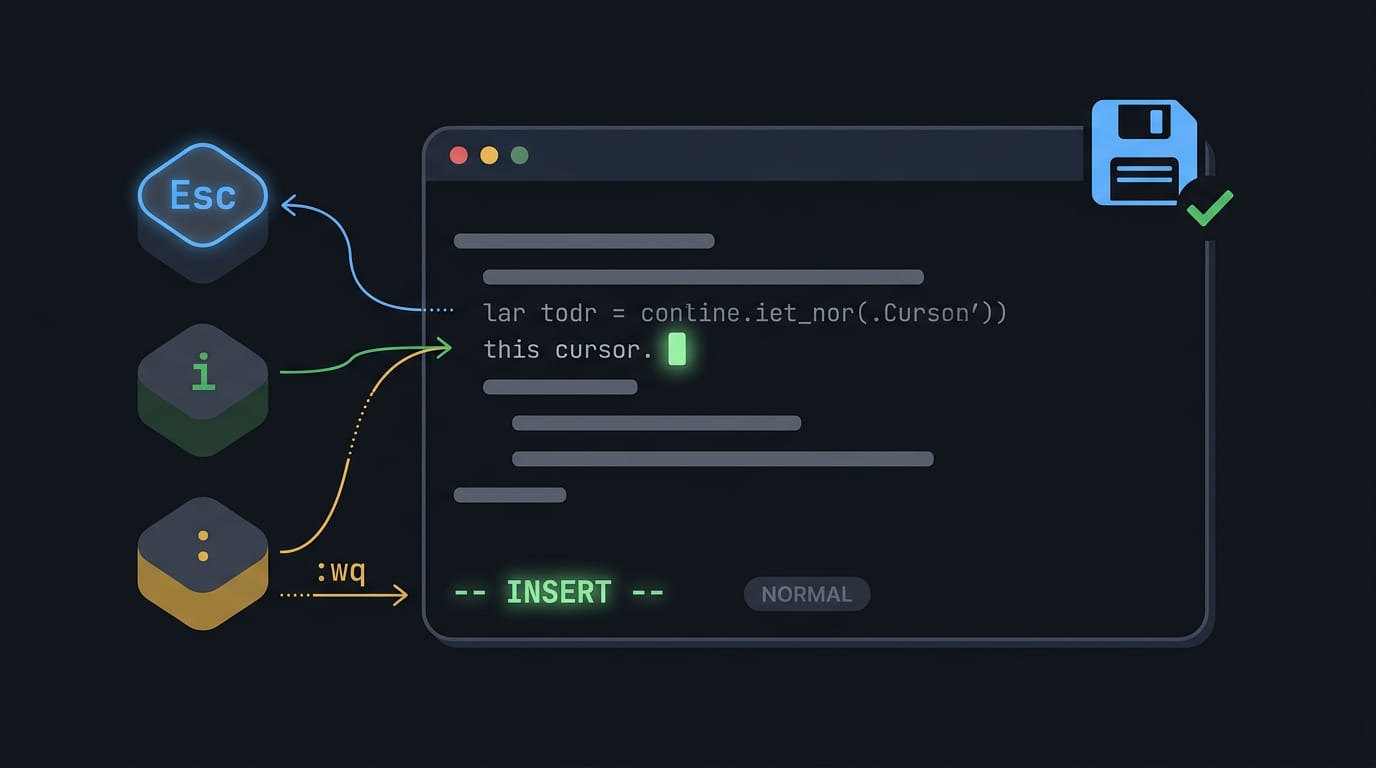
The vi command opens a keyboard-driven text editor commonly available on Linux and Unix systems, including remote servers. It uses modes: command mode for moving, searching, and editing, and insert mode for typing; Esc returns to commands, while colon commands save or quit. Learning a few essentials makes it practical to change and recover files from a terminal, even when other editors are unavailable.
Ever opened a config file over a remote connection and found your favorite editor missing? That’s where vi comes in. It’s a text editor built into nearly every Linux system, so it’s there when the fancy tools aren’t.
vi works differently from most editors. Instead of typing straight into the text, you switch between modes: one for moving around and one for inserting words. Once that clicks, you’ll edit without ever reaching for the mouse.
We’ll cover the modes, saving and quitting, editing, and searching, then show you how to make vi your default editor and use it over Secure Shell (SSH).
The Vi Command in Linux and Vim
vi is the default editor on Linux and UNIX systems, so you’ll meet it sooner or later.
Does anyone still use vi on servers?
Yes, and for good reason. vi means visual editor: a full-screen text editor that’s usually already installed. Other editors, like pico and emacs, exist, but vi is the one you’re most likely to find waiting.
That’s why it lives on servers. You’ll often reach a remote machine over Secure Shell (SSH), a way to log into another computer, and vi is there for recovery too.
Picture a home-lab tinkerer on a screenless server, fixing a config that stops a service from starting. vi is the only editor installed, so knowing how to save and quit gets them out of the file.
How Vim relates to vi
If you’ve typed vi and seen something that looks different, you may have met Vim, which may be installed on some systems. The same commands work in both, and Vim adds extra features on top.
Your system might give you plain vi, Vim, or nvi, another vi-compatible editor, so it’s worth checking. Run readlink -f $(which vi) to see the file it really points to: a name containing vim or nvi usually tells you which one you have.
Commands care about case, so start small
Commands are case-sensitive, so i and I do different things: i inserts before the cursor, while I inserts at the start of the line. Learn a handful first. These starred commands are the essentials:
- ★
i: start inserting text - ★
Esc: back to command mode, where keys run commands - ★
:w: save the file - ★
:q: quit - ★
:wq: save and quit - ★
:q!: quit without saving
The Modes Vi Switches Between
Vi runs on modes, and each one changes what your keys do. We’ll start with the three you’ll use most, and the rest falls into place.
Command mode is where vi starts
When you open a file, vi drops you into command mode by default. Here your keys do things rather than type them. j moves the cursor down, and dd deletes the line. Colon commands like :w to save show up on the bottom line.
Picture a hyprland user SSHed into their rig from bed at 1am, fixing a broken waybar config. They use j to reach the bad line and dd to clear it, and nothing gets typed by accident.
Switching into insert mode to type
To start typing, press i to insert before the cursor or a to append after it. Vi switches to insert mode, and the -- INSERT -- indicator at the bottom confirms it. Everything you type now goes straight into the file. Press Esc to return to command mode.
Type dd while still in insert mode and you’ll get the letters dd in your text instead of a deleted line. Tap Esc first, every time.
Selecting text in visual mode
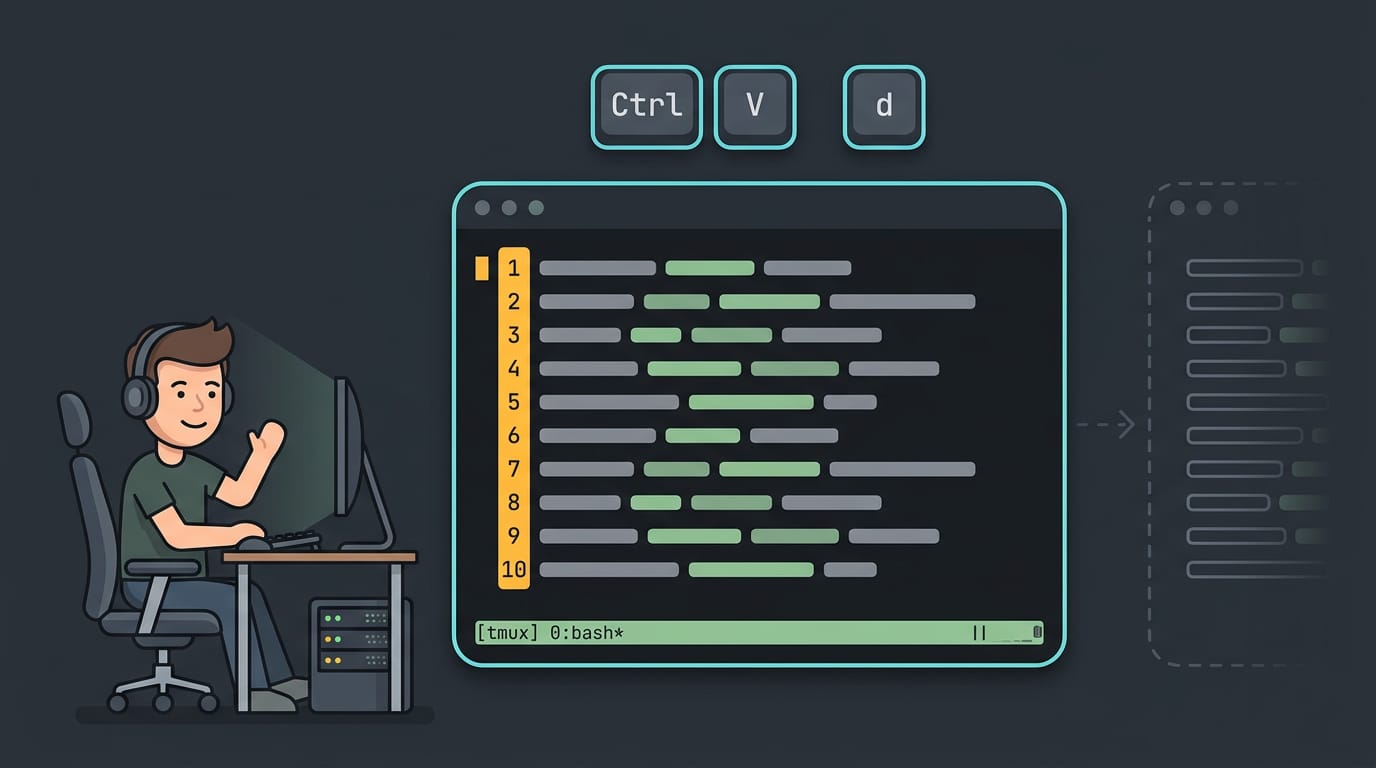
Instead of retyping a chunk, you select it and act on it. Press v to enter visual mode and select one character at a time, or press V to select whole lines. Ctrl+v selects a rectangular block, which suits editing one column across several lines.
With text highlighted, y copies it (vi calls this yanking), d deletes it, and > or < indents or outdents it.
Picture a tmux-and-ssh homelabber with a stray column of numbers down ten lines of a config. Press Ctrl+v, move down the column, then d. Ten lines fixed, no retyping.
Open, Save and Quit Your Files
Opening, saving, and quitting are the first commands you’ll need, and the ones newcomers hesitate over most. Here’s how each one works.
Opening files and recovering after a crash
Start vi with a filename, like vi notes.txt. If the file doesn’t exist yet, vi creates it when you save. Already inside? Type :e otherfile to open a second file. If you’re unsure which filename to use, the ls command lists the files in a directory.
Picture a homelabber editing a config over SSH (Secure Shell) when the connection dies mid-edit. After logging back in, run vi -r to see what’s recoverable, then vi -r filename to get your changes back. Your edits don’t have to vanish.
Saving, copying and pulling in files
Use :w to save while staying in the editor. Add a name to save a copy under a new file: :w backup.conf. To save only part of a file, give a line range, like :5,12w snippet.conf, which writes lines 5 through 12.
When vi refuses to overwrite an existing file, :w! forces the write.
:w sends text out to a file, while :r filename pulls another file in below your cursor.
Quitting and getting out when stuck
Typing a colon opens the command line, and nothing runs until you press Enter. Use :w to save without leaving, and :q! to leave without saving. Your main exits are:
:qquits, as long as you’ve saved.:q!quits and discards unsaved changes.:wqand:xsave and quit.ZZ(no colon) does the same from normal mode.
Stuck in a mode you didn’t mean to enter? Press Esc to get back to normal mode, then type your exit command. You can always get out.
Moving the Cursor Around a File
In normal mode, the default mode you land in when you open a file, most keys move you around the text. Here’s how we’ll get around without ever reaching for the mouse.
Basic moves with keys, not the mouse
Your hands can stay on the home row. Use these to move:
- h moves left
- j moves down
- k moves up
- l moves right
The arrow keys work too, if that’s what your fingers reach for first. In vi, though, the mouse won’t move the cursor for you, so you move with keys rather than clicks. Consider a ricer tweaking a waybar config at 1am.
A few presses of j and l land the cursor on the value they want to change, with no trip to the trackpad.
Jumping to line starts and words
Moves within a line are just as quick:
- 0 jumps to the very first column of the line.
- ^ jumps to the first non-blank character, which is usually what you want on an indented line.
- $ jumps to the end of the line.
- w moves to the start of the next word, e moves to the end of the current or next word, and b moves back to the start of the previous one.
Learn w and b first. They do the heavy lifting.
Jumping to file ends and scrolling screens
gg and G take you to the first and last lines. Put a number before G to jump to a specific line, so 42G lands on line 42.
- Ctrl-d and Ctrl-u scroll half a screen down and up.
- Ctrl-f and Ctrl-b scroll a full screen forward and back.
- Ctrl-l redraws the screen when output leaves it looking garbled.
A student opening a 900-line log on a ten-year-old ThinkPad can press G and land on the last line at once.
Showing line numbers and total line count
Ctrl-g shows the current line number and the total line count, so you know where you stand in the file. Want numbers visible all the time? Type :set number, and :set nonumber hides them again.
A homelabber gets an error over SSH that points to line 212 of a config file. With numbers on, 212G gets them there straight away. No hunting required.
Making Changes to Your Text
Once you can move around, it’s time to change text. Most edits pair an action with a movement, so a few keys go far.
Adding text before or after the cursor
Press i to enter Insert mode right at the cursor, or a to enter it one character later. Here are the other entry points:
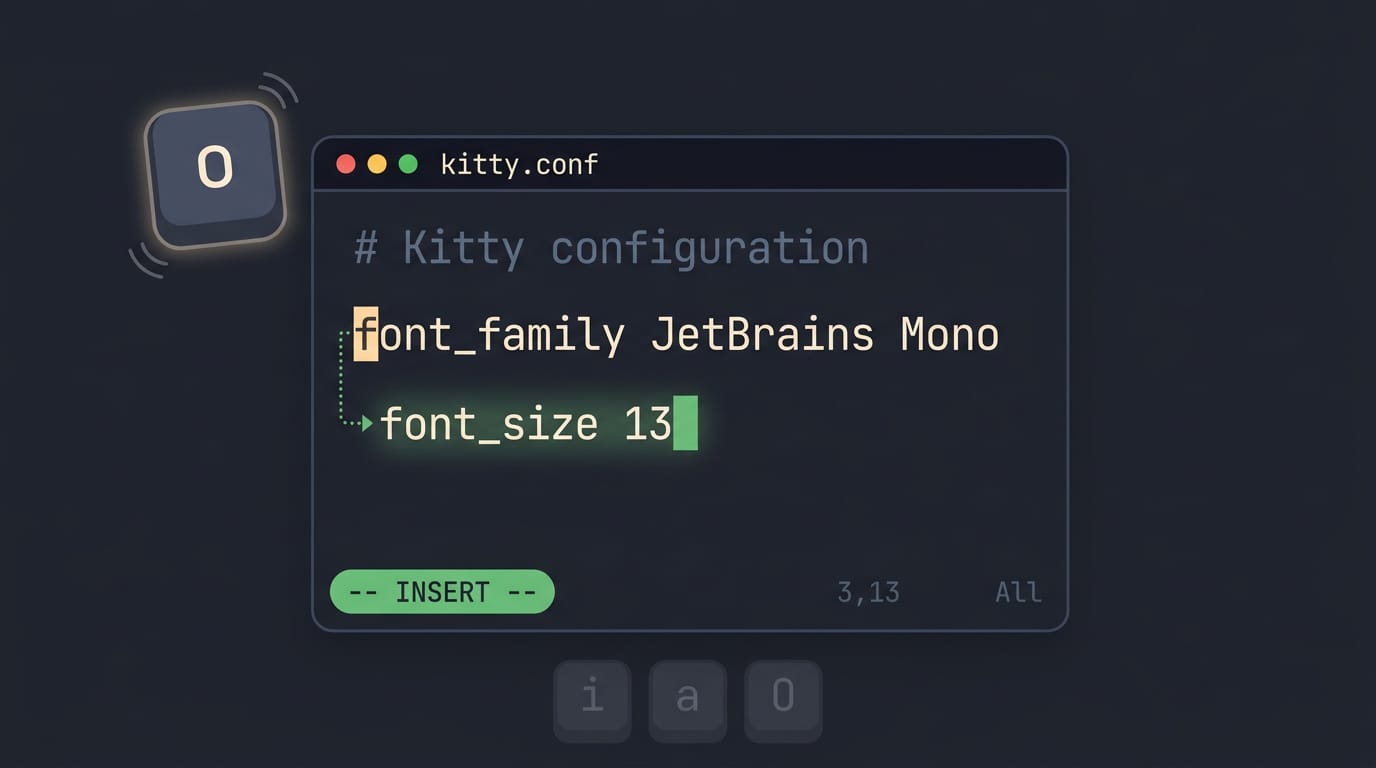
Iinserts at the start of the line.Aappends at the end of the line.oopens a new line below the current one and starts Insert mode there.Oopens a new line above it.
Say you’re editing kitty.conf and need a font line under an existing one. Press o, type the line, then press Esc to return to Normal mode. No moving the cursor to the end of the line first.
Replacing and changing words and lines
rreplaces the character under the cursor, then returns you to Normal mode.Roverwrites characters until you pressEsc.cwchanges the rest of the word and drops you into Insert mode.ccclears the whole line so you can retype it.
Put a number before most commands to repeat them. That number is a count, so c5w changes the next five words.
The dot key (.) repeats your last change. Say a homelabber fixes a wrong port in a remote config with cw, then moves to the next one and presses .. No retyping.
Removing characters, words and lines
xdeletes the character under the cursor.Xdeletes the character before it.dwdeletes a word.dddeletes the whole line.Ddeletes from the cursor to the end of the line.
Counts work here too, so 3dw deletes three words. Vi keeps a copy of what you delete, so nothing’s really lost.
Picture a student on an old ThinkPad clearing a pasted block of junk from a shared notes file. They move to the top and press 5dd, which takes out all five lines in one command.
Copying, cutting and pasting text
Vi calls copying yanking. Cutting is just deleting: dd and dw remove text and keep a copy for pasting.
yyyanks (copies) the current line.ywyanks a word from the cursor.y$yanks from the cursor to the end of the line.ppastes after the cursor, or below the line if you yanked whole lines.Ppastes before the cursor, or above the line.
Counts work here too: 3yy copies three lines.
A waybar tinkerer moving a six-line module block to the bottom of config.jsonc presses 6dd, moves to where it belongs, and presses p. Not one brace needs retyping.
Undoing and redoing changes, plus joining lines
uundoes your last action.Ctrl+rredoes whatever you just undid.Jjoins the current line with the one below it, adding a space.
Say a dotfiles hoarder accidentally wipes a block from a .zshrc with dd. Pressing u brings it right back, no digging through backups. Mistakes are cheap, so use u freely.
Finding and Replacing Text
Once you can move around, the next job is finding text and changing it, so here’s how we’ll search, replace across a file or line, and tune a few settings.
Finding text forward and backward
Type / and your text to search forward, or ? to search backward. Say you’re hunting for a keybinding in a long hyprland config: /bind jumps to the next match, and ?bind heads back up the file.
Then n repeats the search in the same direction, while N goes the opposite way.
Replacing text across a file or line
The substitute command does the replacing. :s/old/new/ changes the first match on the current line. Add g to change every match on that line, and % to cover the whole file: :%s/old/new/g.
Picture someone who swapped an accent color in their waybar styling. One command updates every instance before they reload the bar.
Want to review each change first? Add the c flag, as in :%s/old/new/gc. Vim asks at each match:
yreplaces itnskips itareplaces all remaining matchesqquits
Slower, yes. Safer, too.
Adjusting case, highlighting and wrapping
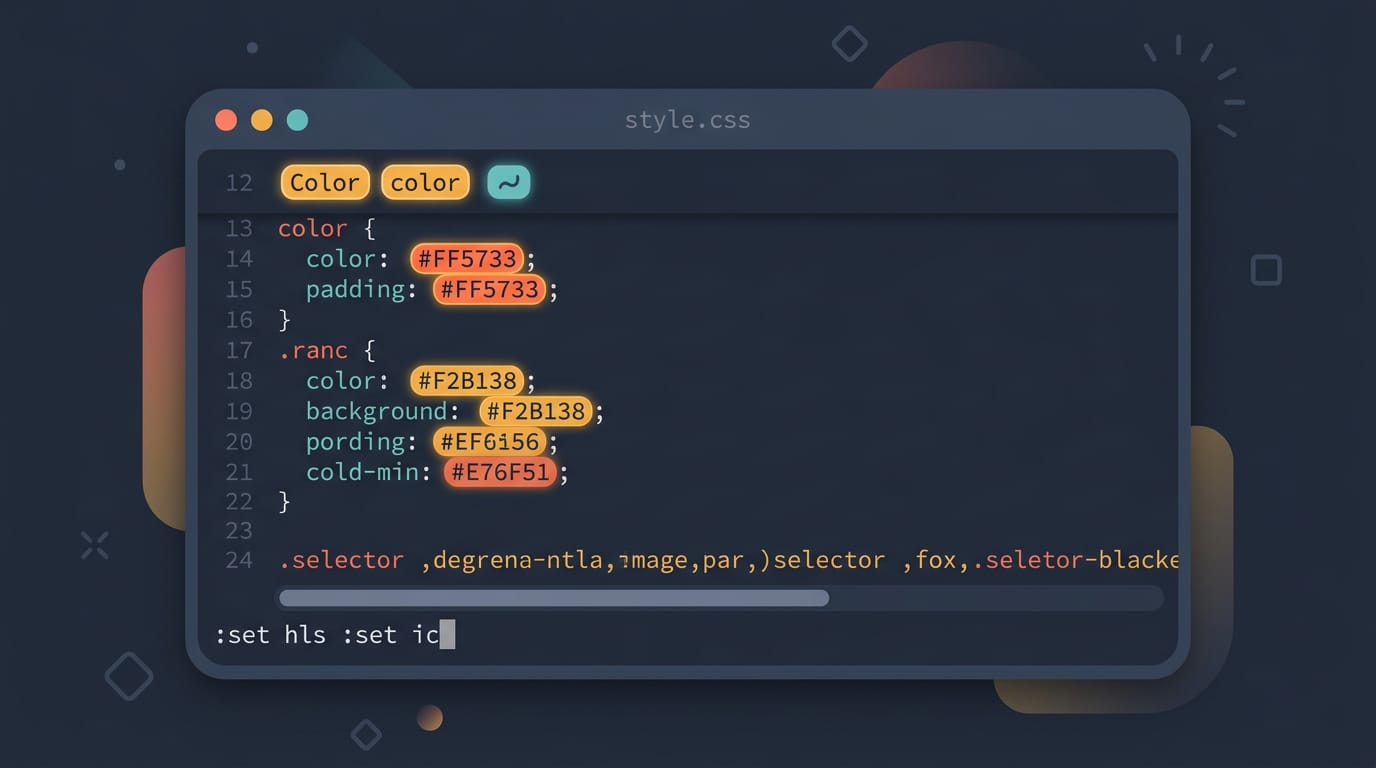
Searches care about capital letters by default, so Color and color won’t match. Use :set ignorecase (or :set ic) to ignore case.
:set hlsearch (or :set hls) highlights every match of your last search, which helps when you’re spotting leftover hex codes before you delete them. Clear the highlights with :nohlsearch.
For files with very long lines, :set nowrap keeps each one on a single row and lets you scroll sideways instead. Flip wrapping on or off with :set wrap!.
More Advanced Tools for Bigger Edits
Once you’re comfortable in one file, we’ll look at juggling several. Vi lets you hop between files and places without losing your spot.
Switching between files and split windows
A buffer is a file vi has loaded. Open another with :e filename, then use these to move around:
:bnmoves to the next buffer:bpmoves to the previous one:bdcloses the current buffer
For side-by-side work, a split divides the screen. Use :split (or :sp) for a horizontal split and :vsplit (or :vs) for a vertical one.
Picture a waybar tinkerer comparing a module’s config with its CSS. A vertical split keeps both visible, and Ctrl+w followed by w cycles between windows.
Add h, j, k, or l after Ctrl+w to go left, down, up, or right, so you move between windows instead of reopening files.
Keep a starter ~/.vimrc in your dotfiles with:
set numbersyntax onset hidden
The last one lets you leave a changed file without saving it first.
Marking spots and jumping back to them
Long configs are full of spots you’ll want to revisit, like a keybind in hyprland.conf. Press m and a letter to set a mark, so ma marks your current spot. Then 'a returns you to that line, while `a lands you on the exact position.
Vi also keeps a jump list of places you’ve recently left. Press Ctrl+o to step back through it and Ctrl+i to step forward. Ctrl+i is the same keystroke as Tab, so either works.
Someone editing a long hyprland.conf marks a keybind with mk, scrolls down to check a window rule, then hits Ctrl+o to snap back. No hunting for the line number.
Practicing and Where to Learn More
Reading about vi only gets you so far, so this section is about building the habit. Here’s where to practice and which commands to drill first.
Tutorials, videos and an interactive game
Start with vimtutor, a lesson that ships with vim and teaches the basics from inside the editor. Prefer watching? Short video demonstrations show mode switching and editing in real time, and you can pause and try each step yourself.
For a more playful route, try the interactive vim-adventures game, which turns movement keys into puzzles.
Picture a homelabber who logs into a server over SSH (Secure Shell) at 1am to fix a broken config. A few sessions of vimtutor beforehand mean the keys are already in their fingers, so they aren’t hunting for how to quit.
The goal is muscle memory rather than memorized lists. Practice wins.
What are the 10 most important commands in Linux?
There’s no official top ten, but these are the everyday commands most people reach for first. Here’s a quick reference grouped by job:
| Category | Commands |
|---|---|
| Files | ls, cd, cp, mv, rm |
| Text | cat, grep |
| Help and admin | man, sudo, chmod |
Print it or save it as a text file so it’s always one glance away. Here’s a routine to make them stick:
- Learn the vi basics: modes, saving, and quitting.
- Drill a few commands from the table each day.
- Use them on real files, such as editing a config with sudoedit.
Last, set EDITOR and VISUAL to vim in your shell profile. Git and sudoedit will then open vim for commit messages and files that need admin rights.
Once you know the two modes, vi stops feeling like a puzzle and starts feeling like a shortcut. You can open, save, search, and change text from the keyboard alone, whether you’re on your own desktop or on a remote machine reached over SSH.
Keep practicing with small edits, and the commands will start to feel like muscle memory. Give it a little time, and the editor that once felt foreign becomes one you reach for without thinking.
The best editor is the one that’s always there when you need it, and vi usually is.
Questions
What is a vi editor?
vi is a full-screen text editor commonly included with Linux and UNIX systems. It uses modes: command mode for moving and editing, and insert mode for typing text.
What are the 10 most important commands in Linux?
There is no official top ten, but common everyday Linux commands include `ls`, `cd`, `cp`, `mv`, `rm`, `cat`, `grep`, `man`, `sudo`, and `chmod`. They cover file management, reading and searching text, getting help, administration, and permissions.
Does anyone still use vi?
Yes. vi is still widely used, especially on servers and over SSH, because it is commonly available even when other editors are not.
Read next.
Linux ls Command: List Files and Directories Explained
The Linux ls command lists files and folders. Practice its most useful flags, then use wildcard patterns to narrow results and find specific files faster.
OS Commands in Linux: A Practical Guide
OS commands in Linux help you find files, move through folders, manage permissions, and customize your desktop without clicking through windows.

Who Developed Linux? The Kernel, GNU and Torvalds
Who developed Linux? See how Linus Torvalds, GNU tools, and thousands of contributors shaped the kernel, distros, and desktops you use today.